A timecode chased show caller. Feed it a cue sheet, feed it timecode, and it puts the right note on screen at the right moment and calls every standby and GO out loud so the whole crew hears the same thing.
Three things go in. One show comes out.
A Google Sheet, an .xlsx, or a .csv. Every cue is a timecode, a label, and the words to call.
MTC over USB MIDI, LTC over any audio input, or the built in test clock.
The current note fills the screen and a voice calls every standby and GO, exactly on the stamp.
It was built for followspot calling, but it reads whatever you put in the CUE column: spot pickups, scenic moves, pyro standbys, mic handoffs, video content changes, anything that happens on a timecode stamp. If the show jumps, rewinds, or the console restarts, it re-finds its place instantly. No stale GOs, no double calls.
The clock is the truth. Green clock means signal is locked and cues will fire. Red clock means signal is gone, and the clock freezes on the last frame it heard. If it goes red mid-show, check your timecode feed, not the app.
Everything is built to be read from across a dark FOH riser.
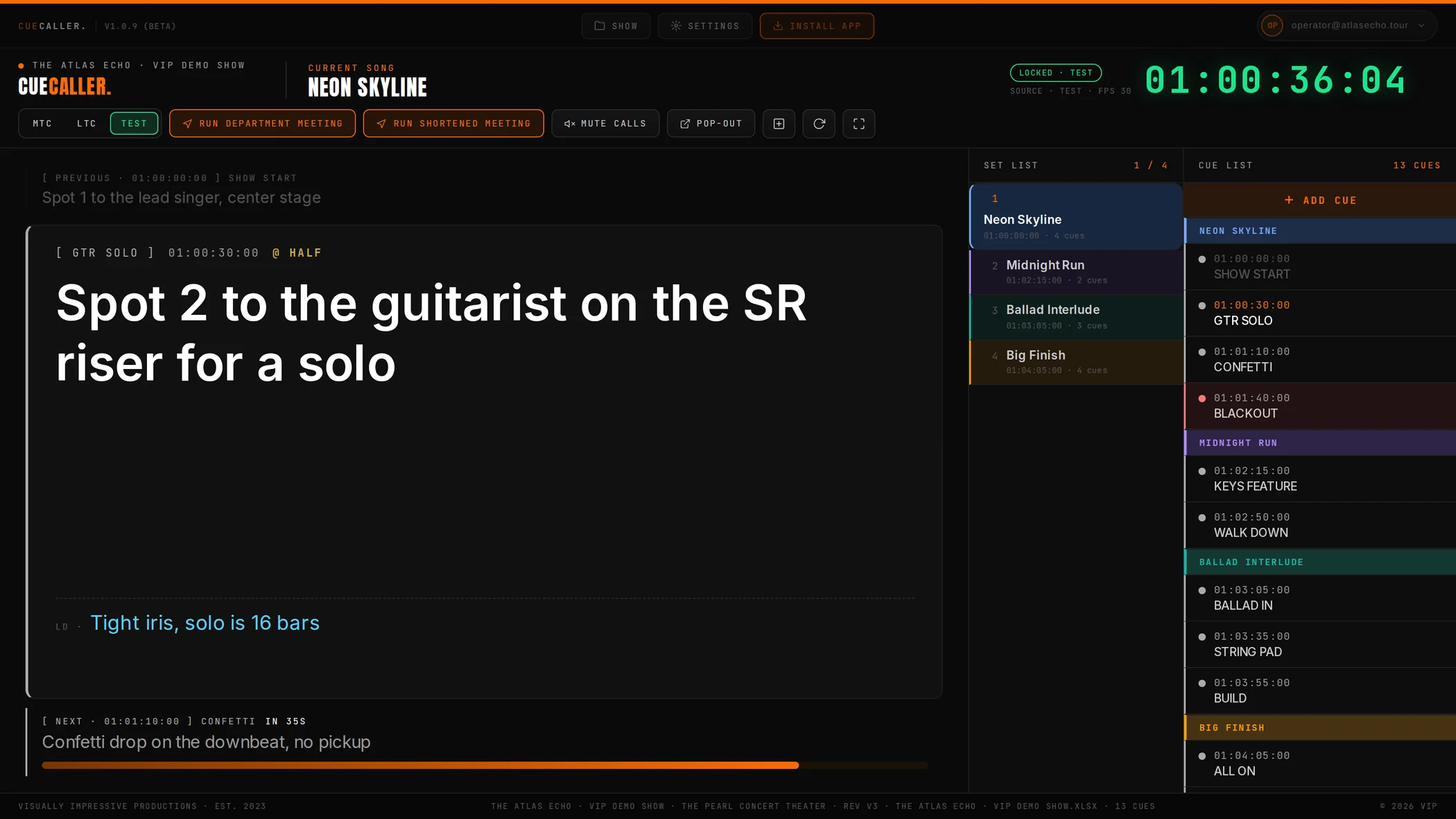
Account bar. The CueCaller wordmark and the build version you are running. Handy when you are reporting something.
Two doorways. Show holds everything that IS the show: files, Google Sheets, sessions, the cue editor, the template, offline, Showtime. Settings holds everything about how it looks and sounds. Install App puts it on the dock.
Your account. Email, tier, Manual, Team, Billing, Sign out. All inside the chip.
The show name. Whatever show is loaded, read straight off the sheet. Upload a logo in Show and it sits here instead.
Current song. Which song the clock is inside, from the song banners in your sheet.
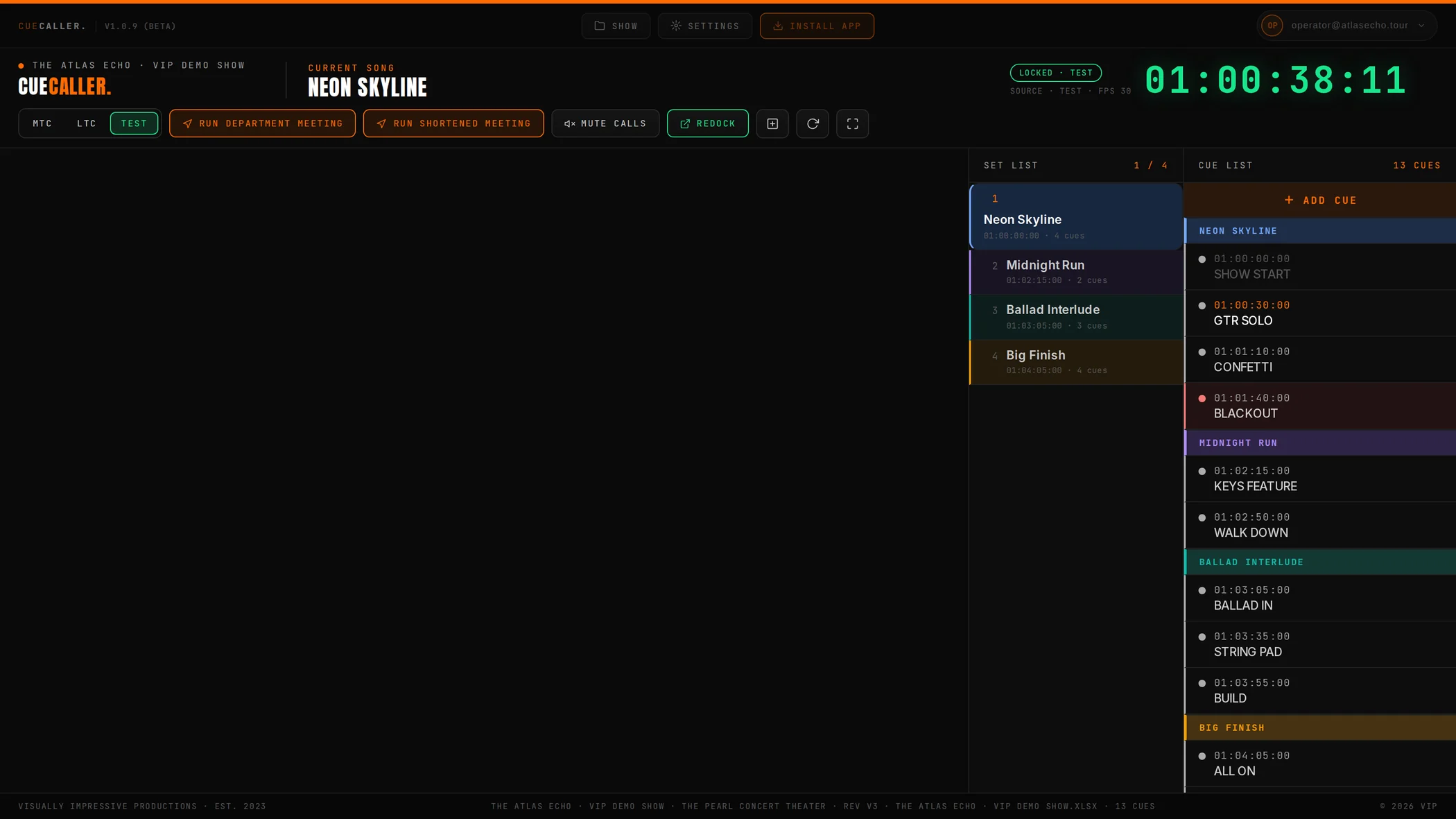
The clock and the signal pill. Frame accurate incoming timecode. Green and LOCKED means cues will fire; red and SIGNAL LOST means the feed is gone. Source and detected frame rate sit underneath.
The source switch. MTC · LTC · TEST in one segmented control. The armed source fills green, exactly like the clock it drives.
Meeting and mute. Run the full or shortened department meeting from the sheet, or mute the caller without touching your cue file.
Pop-Out. Sends your chosen panels into a second window for a second monitor. See Pop out your panels.
Add a cue. The + button, or A, drops a cue in at the current timecode. Beside it: re-pull the linked sheet, and fullscreen.
Previous cue. Grayed, so you always know what just went.
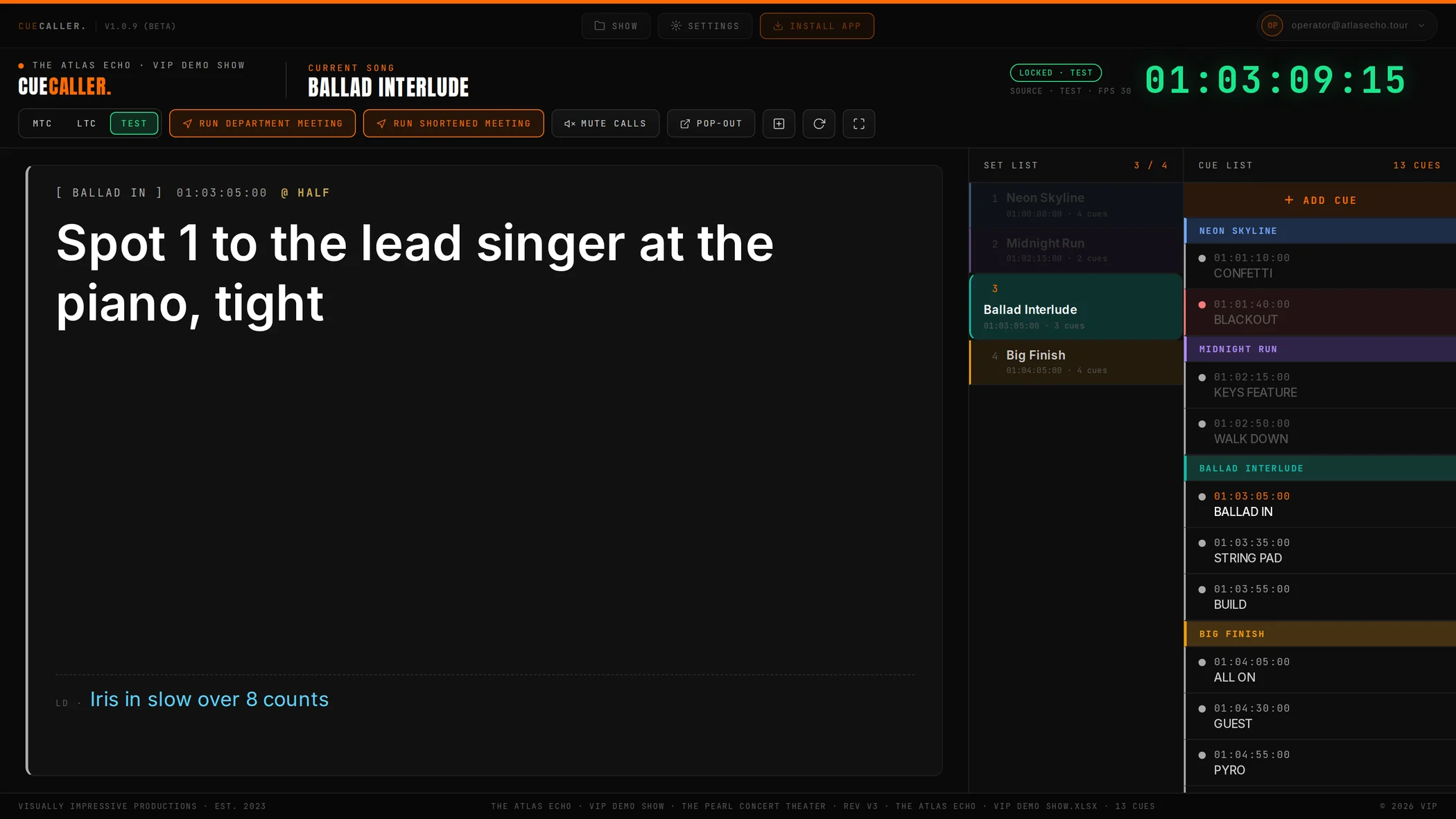
The current cue. Label, stamp, and level in the eyebrow; the call itself fills the panel at reading glasses size.
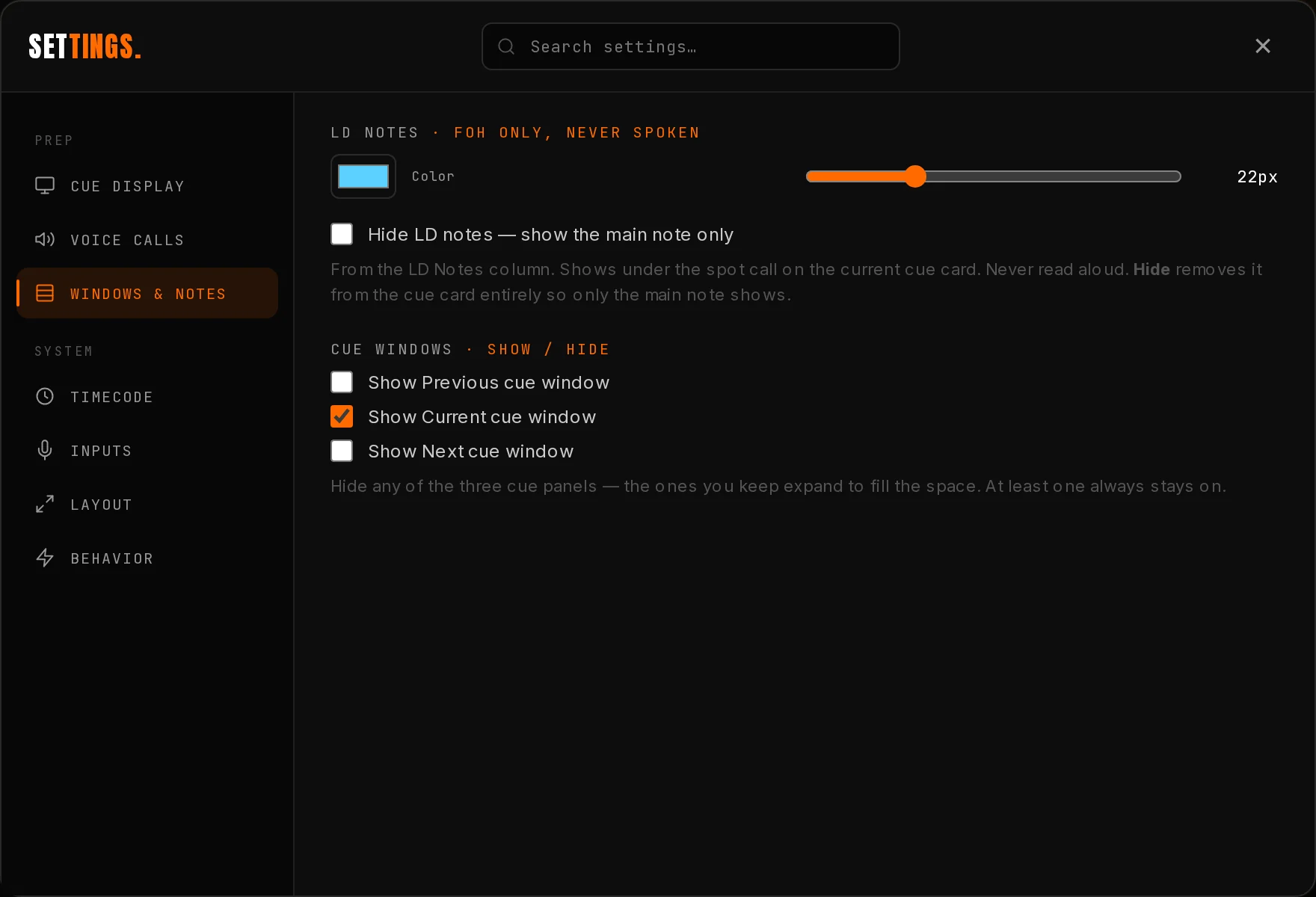
Notes. The cyan line, from your sheet's NOTES column. Shown, never spoken.
Next cue and countdown. What is coming and when. The orange bar drains and hits empty exactly on the stamp, and turns red in the last 5 seconds.
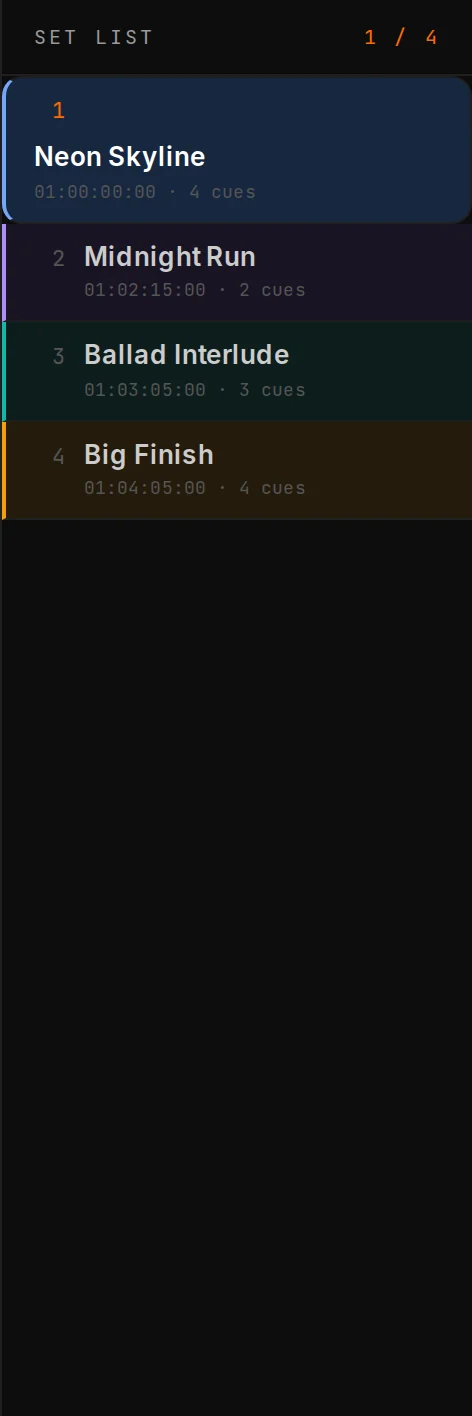
Set list. Tonight's running order. The active song lights up, played songs dim, and your section colors band each entry. Click a song in test mode to jump to it.
Cue list. Every cue in document order with song separators. Colored cues carry a dot and a rail, the live cue highlights, and the list follows the show.
The footer. Show, venue, rev, file name, cue count. Two seconds of reading here saves a night.



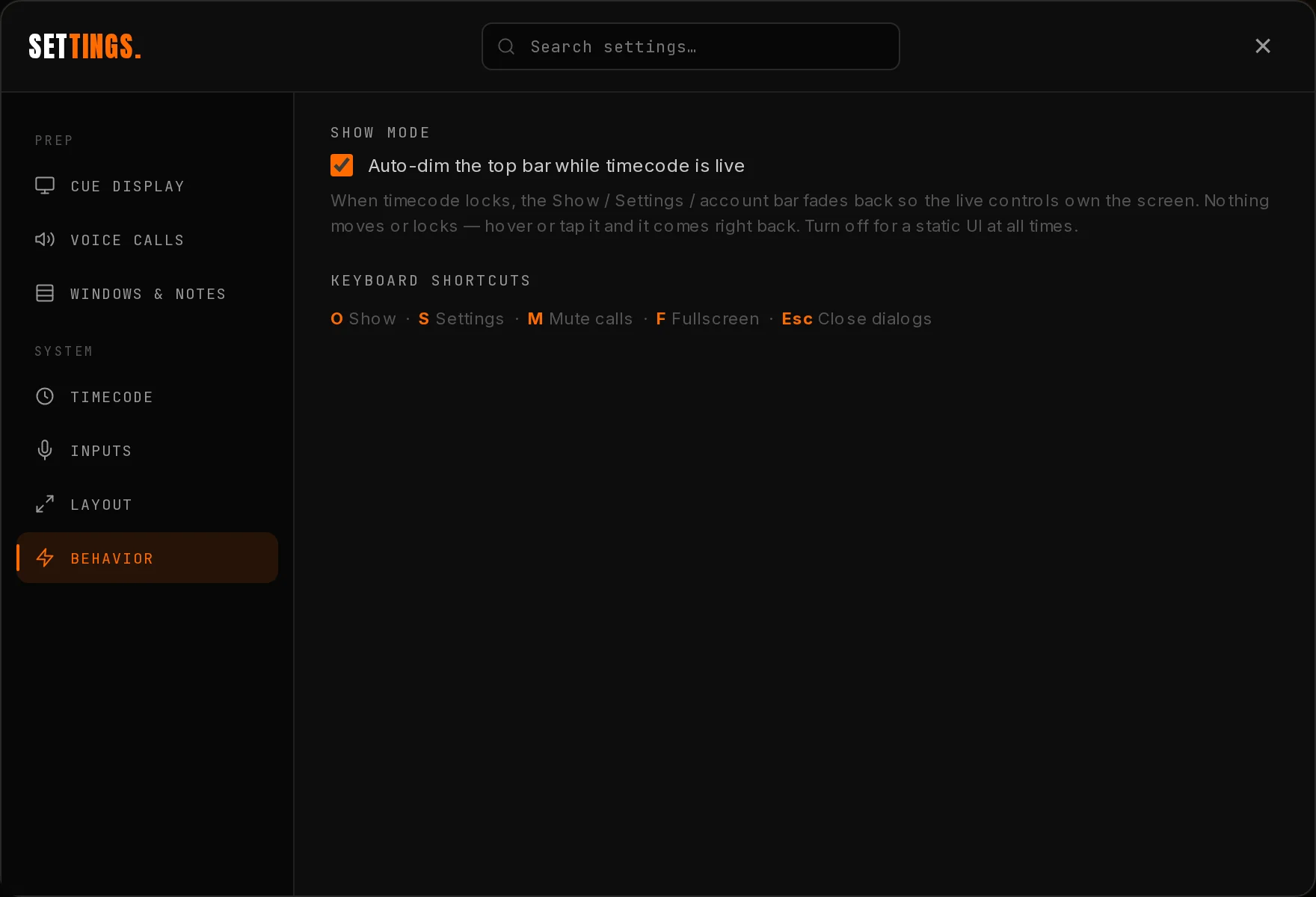
O the Show hub · S settings · A add a cue at the current timecode · M mute calls · F fullscreen · ↓ → step to the next cue by hand · ↑ ← step back · Esc closes anything open. That is all of them.
When timecode locks, the top bar dims to 45% so the live show owns the screen. Nothing moves, and hovering brings it straight back. Turn it off in Settings → Behavior if you want a static UI.
Use the email you were invited on. Forgot the password? Use the reset link on the login page.
Drop a cue sheet anywhere on the landing screen, open Show (press O) to link a Google Sheet or pull a session, or arm Test and poke around first.
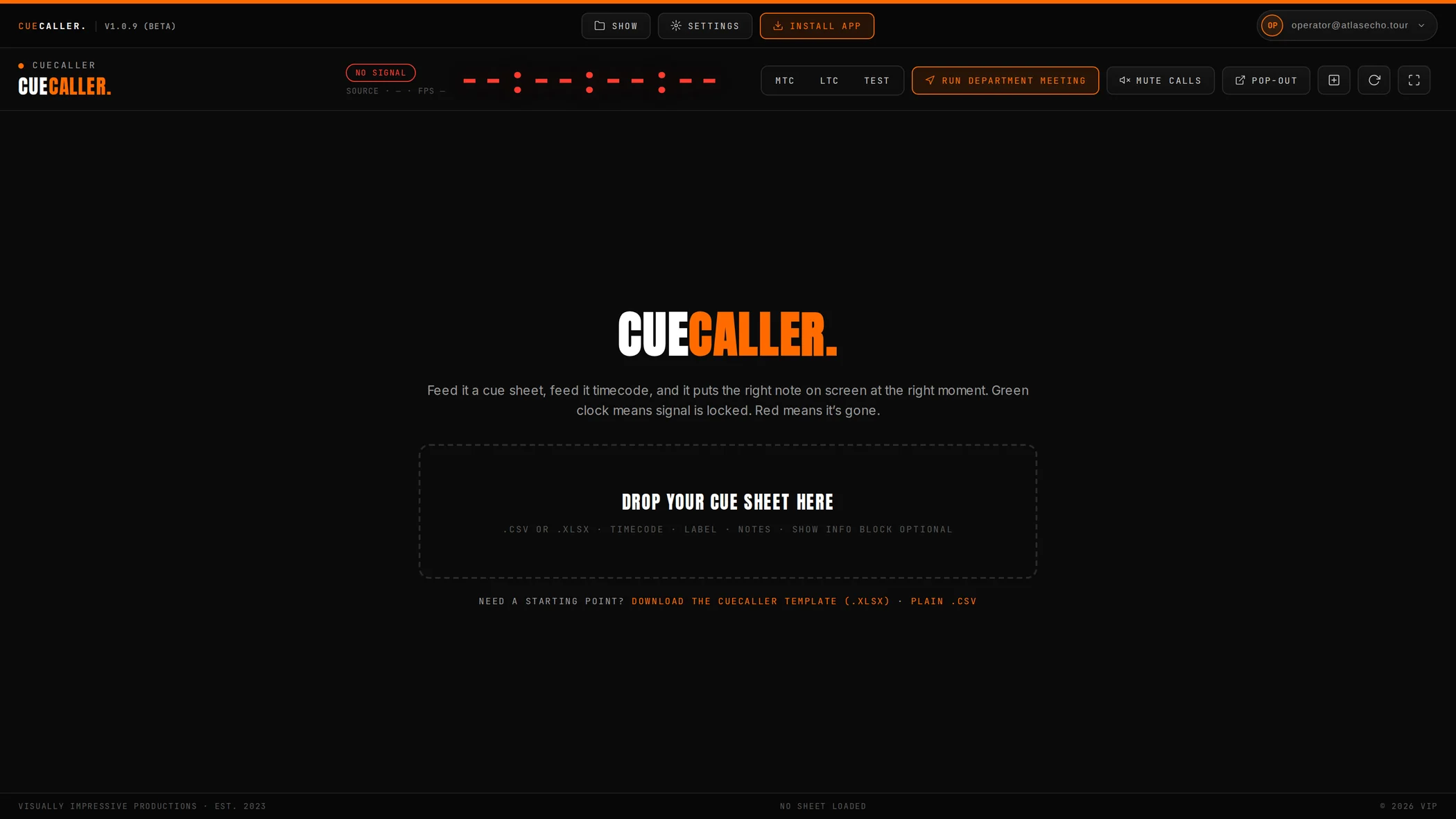
Download the demo show .xlsx, drop it on the page, then arm TEST on the source switch next to the clock. The show starts ten seconds later. Click any cue in the right-hand list to jump to it. Every screenshot in this manual is that file, running in the real app.
One spreadsheet drives the whole show. Start from the template; the parser does the rest.
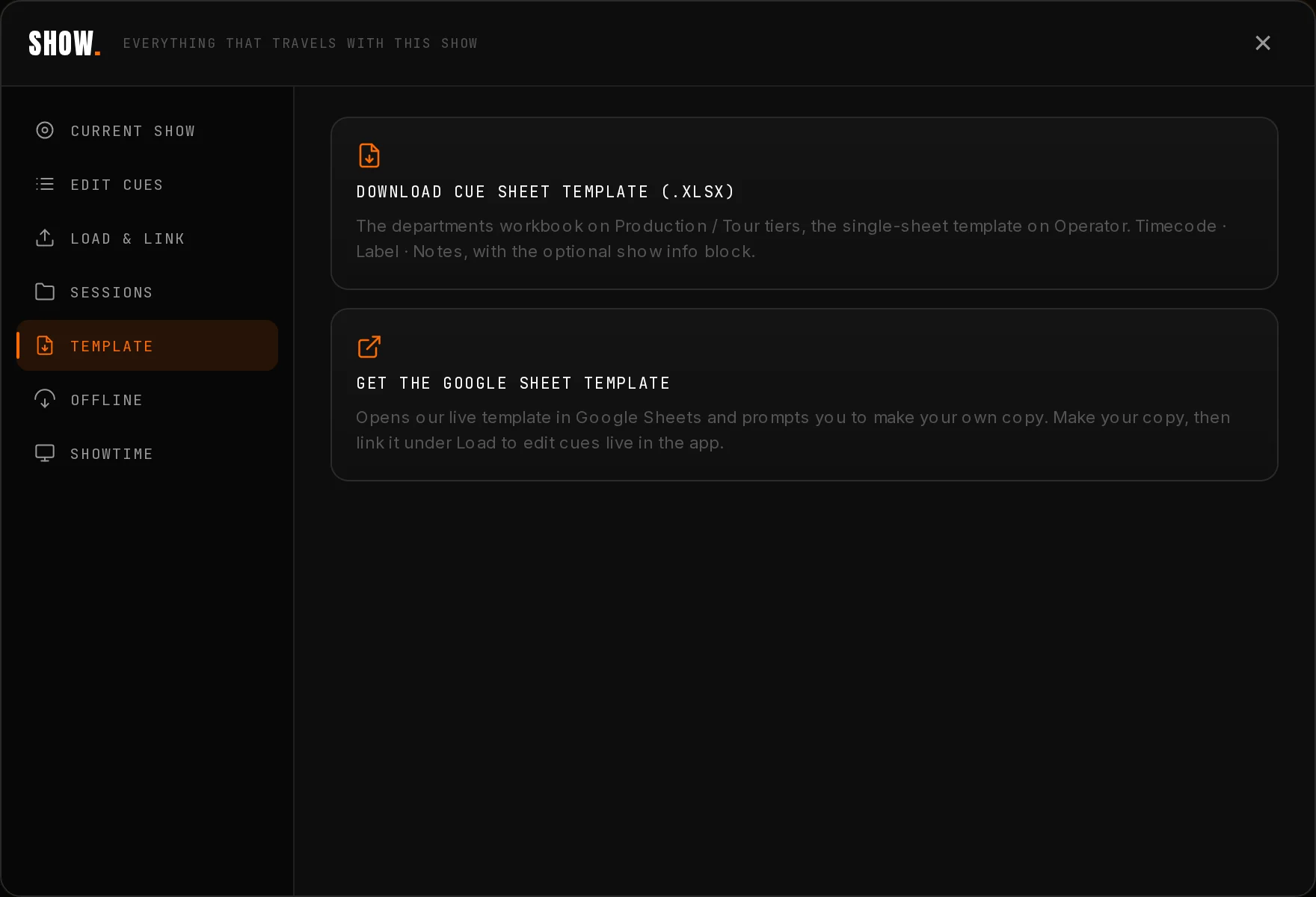
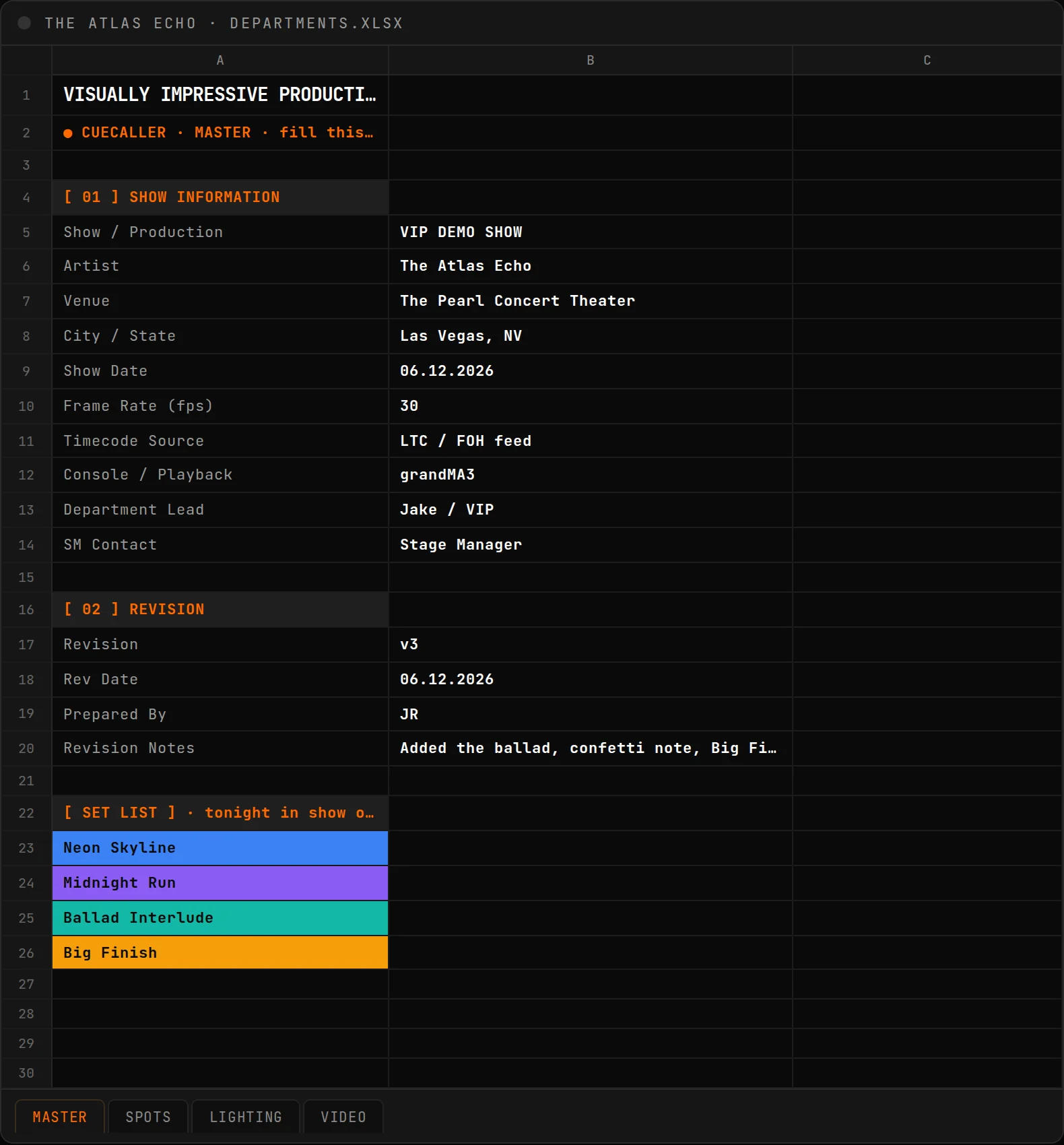
Open Show → Template for two ways to start: Get the Google Sheet template makes your own copy in Drive, or Download the .xlsx if you would rather work in a file. Both carry the same labeled sections, and the app reads them all.
You can also write your own sheet from scratch. The only thing the parser truly needs is a header row containing Timecode, Label, and CUE. Everything else is optional and just makes the tool smarter.
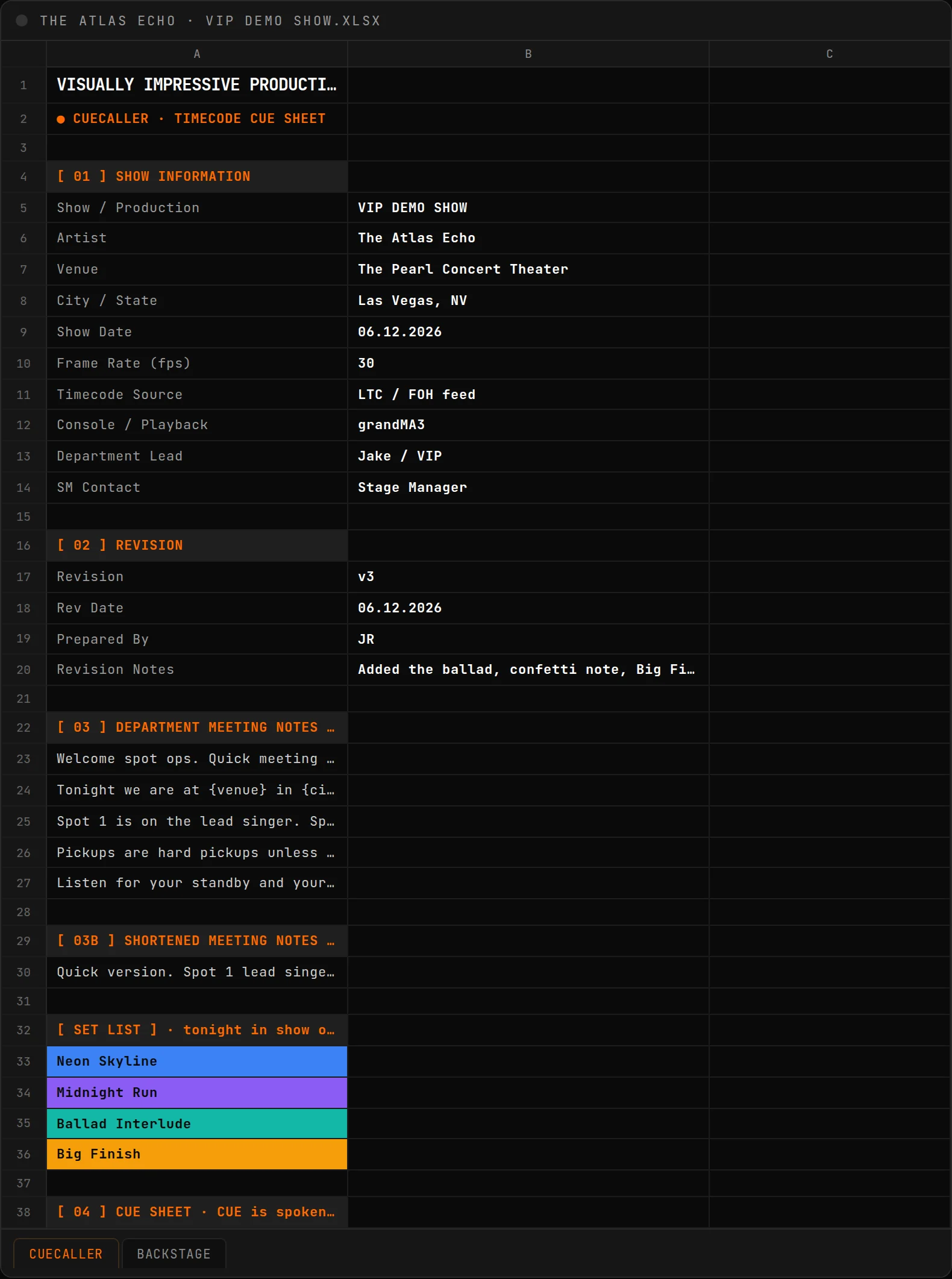
| Section | What it does in the app |
|---|---|
| [ 01 ] SHOW INFORMATION | Artist, show, venue, city, date, fps, console, Department Lead, SM contact. Feeds the show name in the header, the footer strip, and every {token}. |
| [ 02 ] REVISION | Rev label and notes. The loaded rev shows in the footer so nobody runs an old sheet without knowing. |
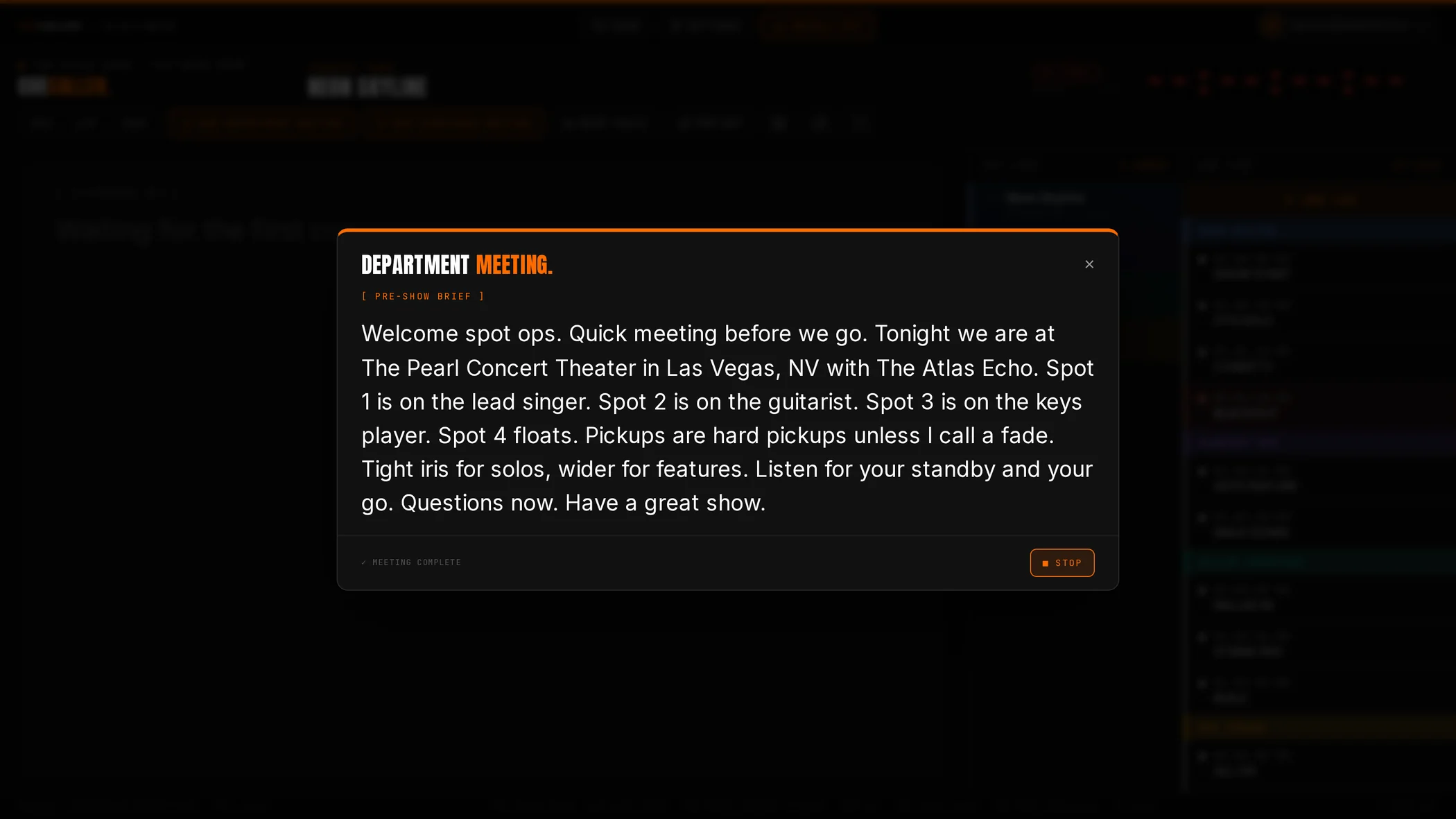
| [ 03 ] DEPARTMENT MEETING | Your pre-show speech. Run Department Meeting reads it aloud once on a branded overlay. |
| [ 03B ] SHORTENED MEETING | Optional condensed version. If it is there, a Run Shortened Meeting button appears next to the full one. |
| [ SET LIST ] | Optional. Tonight's running order, one song per row. Powers the set list panel and the section colors. |
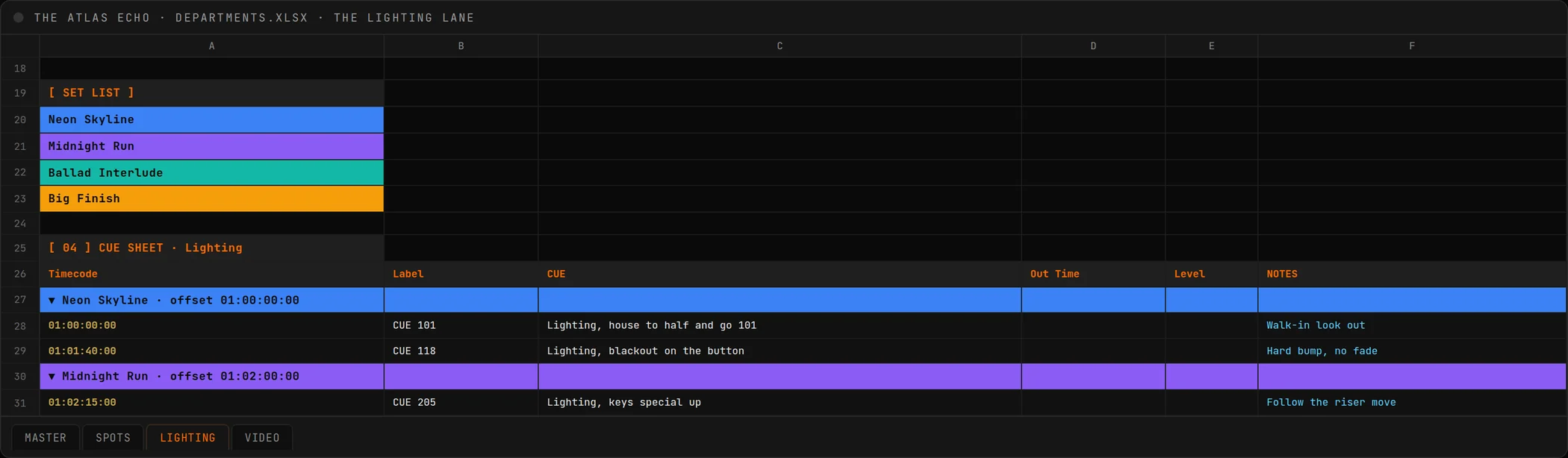
| [ 04 ] CUE SHEET | The cue table itself. Six columns, covered next. |
| BACKSTAGE Tour | A separate tab, invisible to the cue caller, that feeds the Showtime backstage board. |
Anywhere in the meeting notes or in a cue, write {artist} {show} {venue} {city} {date} {fps} {rev} {console} {ld} {sm} and the app fills them from the show info block at load time.
Write the meeting once: "Tonight we are at {venue} in {city} with {artist}." Update two cells per city and the speech rewrites itself.
Want a known-good reference? Grab the demo show .xlsx (colored, with a BACKSTAGE tab), the same show as a plain .csv, or the multi-department version. Open one next to this page and the format explains itself.
TIMECODE and CUE do the heavy lifting. The other four sharpen the call.
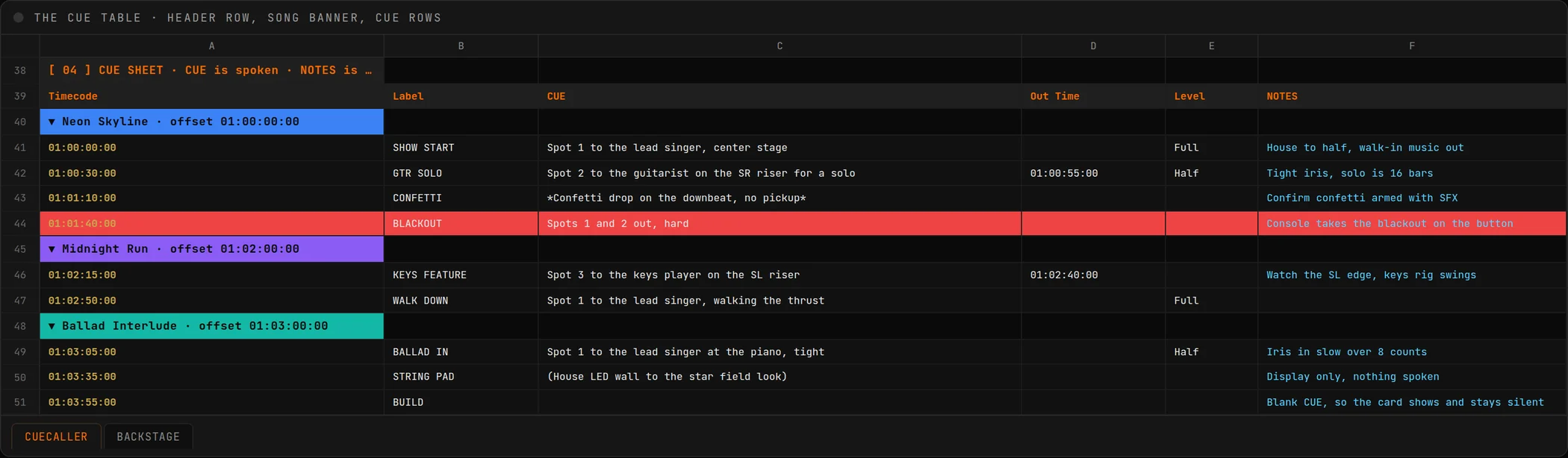
| Column | Behavior | Voice / screen |
|---|---|---|
| TIMECODE | HH:MM:SS:FF. The moment the cue fires. Rows without a valid stamp are ignored, so notes-to-self rows are safe. | Drives GO |
| LABEL | Short name. Shows in the eyebrow and the cue list. Never spoken. | Shown |
| CUE | The call itself. Spoken in the standby and shown full screen. Write it the way you would say it: "Spot 1 to the lead singer, center stage". | Spoken Shown |
| OUT TIME | Optional second stamp. At that moment the voice calls "Spot N fade out now" for the spots named in this cue, plus a red on-screen toast. | Spoken |
| LEVEL | Optional intensity. Appended to the standby ("…at Half") and shown as a gold @ HALF chip in the eyebrow. | Spoken Chip |
| NOTES | Reference line shown under the call, never read aloud. Use it for anything you want to see but not hear. | Shown |
The columns were renamed in v1.0.9 so they say what they do: the spoken column is CUE and the shown-only column is NOTES. Sheets built on the old Notes plus LD Notes layout still load exactly as before. Nothing to migrate.
At the standby lead, 10 seconds before the stamp by default:
"Standby Spots. Spot 2 to the guitarist on the SR riser for a solo, at Half."
"Spots, GO!"
"Spot 2 fade out now."
The prefix ("Spots") is yours to change in Settings. Leave it blank and the cue is read exactly as written, with no wrapper.
The cue table is a song library. The set list is tonight's running order.
Inside the cue table, a row starting with ▼ is a song banner: ▼ Neon Skyline · offset 01:00:00:00. Every cue below it belongs to that song until the next banner. Banners give you the separators in the cue list, the CURRENT SONG readout in the header, and the names the set list matches against.
Each song lives on its own timecode island, so songs can sit in the sheet in any order. Cues fire by timecode no matter how the document is arranged, and the cue list still displays in document order.
One song name per row, in tonight's order. Names match loosely, so case and punctuation do not matter, and an entry with no matching banner shows no matching song in sheet instead of breaking. A typo is loud during prep instead of quiet during the show.
No SET LIST section? The panel falls back to the order the songs appear in the sheet.
Reorder the rows in [ SET LIST ], reload the sheet, or hit ↻ if it is a linked Google Sheet. Done. The cue table never moves. That is the point: the library holds every song you have ever programmed, and the set list picks tonight's show.
On the test clock, click a song to jump to the top of it, or a cue to land one second before its standby. Fastest way to run the same transition ten times without touching a console.
Color a cell in your sheet and the screen wears it. No new syntax, no extra column, just fills.
CueCaller reads the background fill color of your spreadsheet cells and mirrors it on screen. There are two levels, and they nest:
Fill any cell in that cue's row. On screen that cue gets a colored dot and rail in the cue list and a soft wash on the current and next cards when it is up.
Fill that song's cell in the [ SET LIST ] block. The color flows to its set list entry, its song separator, and a soft band across every cue in the song. A cue you colored individually still wins over its section.
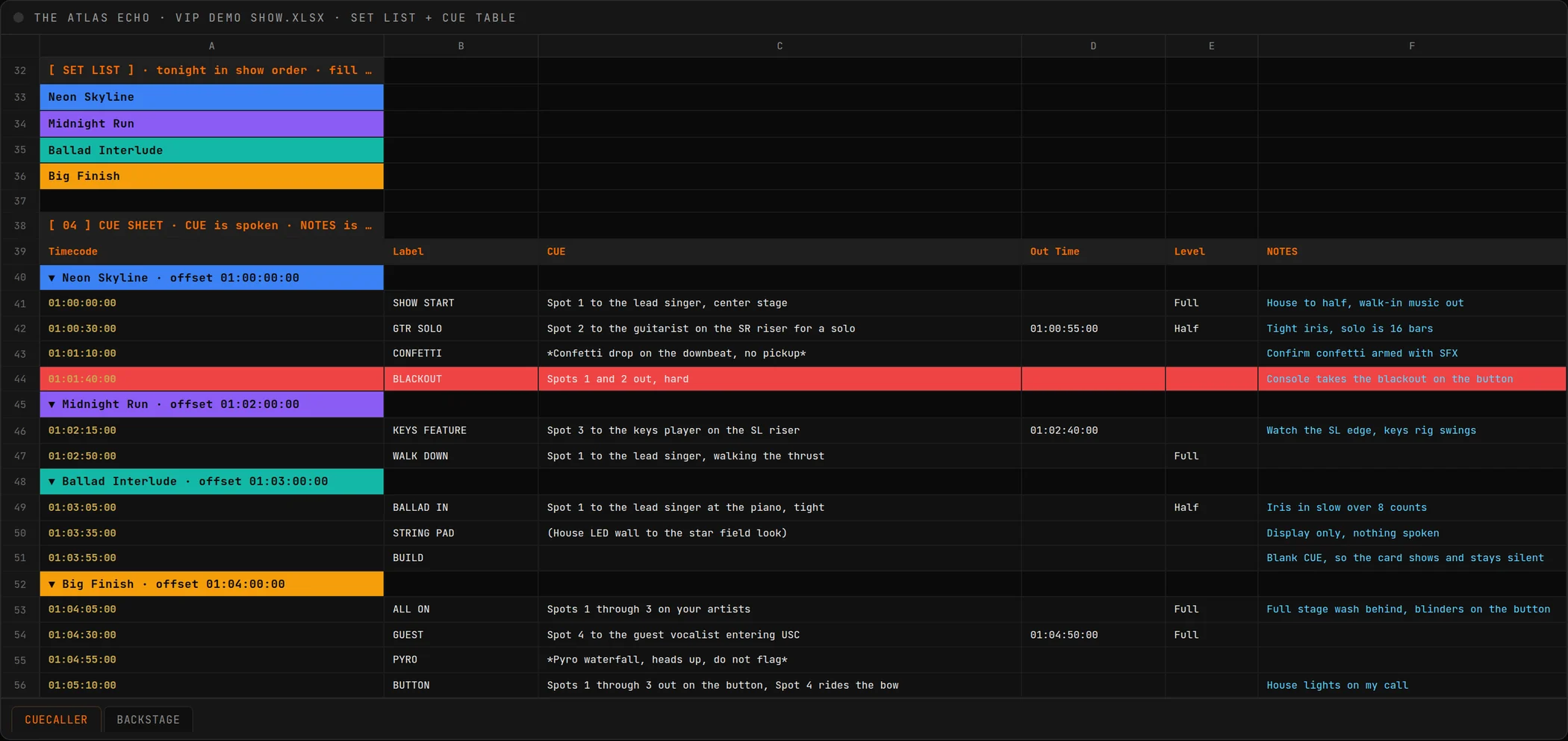
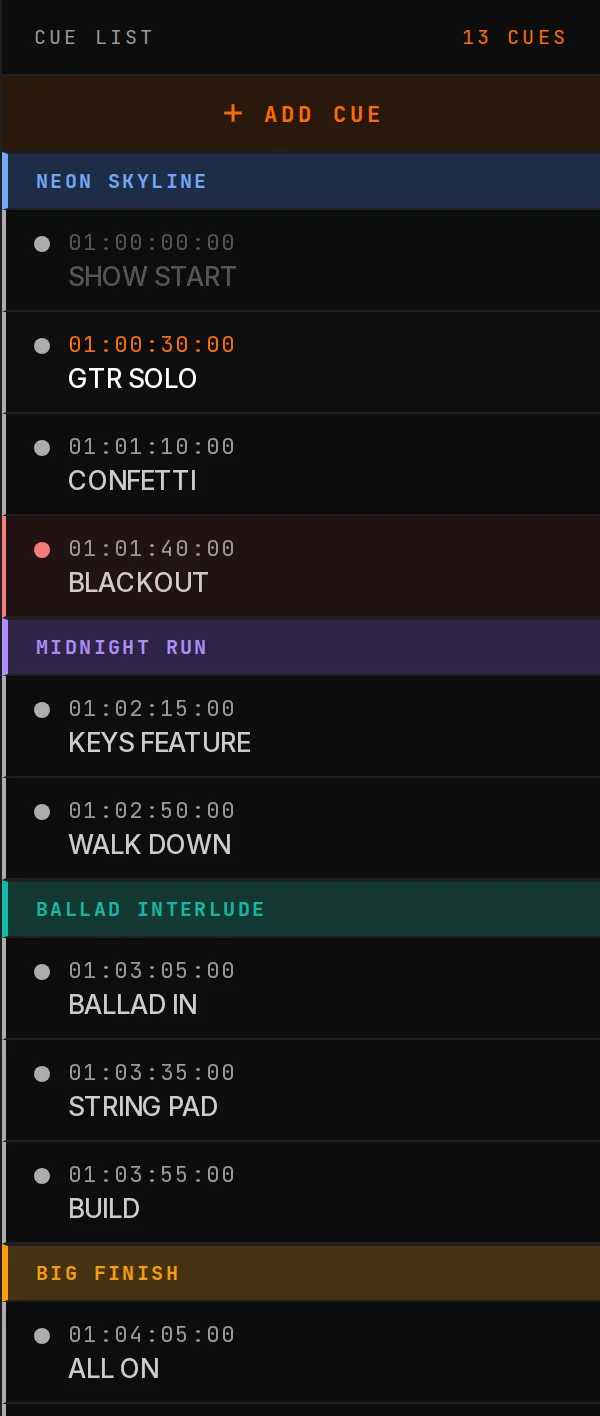
Colors come through from an uploaded .xlsx and from a linked Google Sheet alike. Standard palette swatches and custom hex both work. A .csv cannot carry fills; that is a file format limit, not a CueCaller one.
Dark fills are automatically brightened on screen so a navy or a deep red still reads from across a dark riser. You pick the color, CueCaller keeps it legible.
The colors mean whatever your show needs: red for blackouts, gold for solos, a color per act, a color per operator. No colors in the sheet? The screen looks exactly as it always did.
Some things deserve a heads up, not a standby and a GO. Some deserve no voice at all.
Wrap a CUE in asterisks or underscores. It is spoken once, exactly at its stamp, with no standby, no GO, no fade out. On screen it renders in italic gold with a [ NOTE ] eyebrow so it never reads as a pickup.
For confetti, pyro warnings, scenic moves, guest walk-ons.
Wrap a CUE in parentheses and the card appears at its stamp in total silence. Nothing is announced, nothing is armed.
For information the operator should see at a moment without the room hearing about it.
Leave the CUE cell empty and you still get a timed card, still get the countdown, and still get whatever is in NOTES. Just no voice.
For structural markers, build sections, and holds.
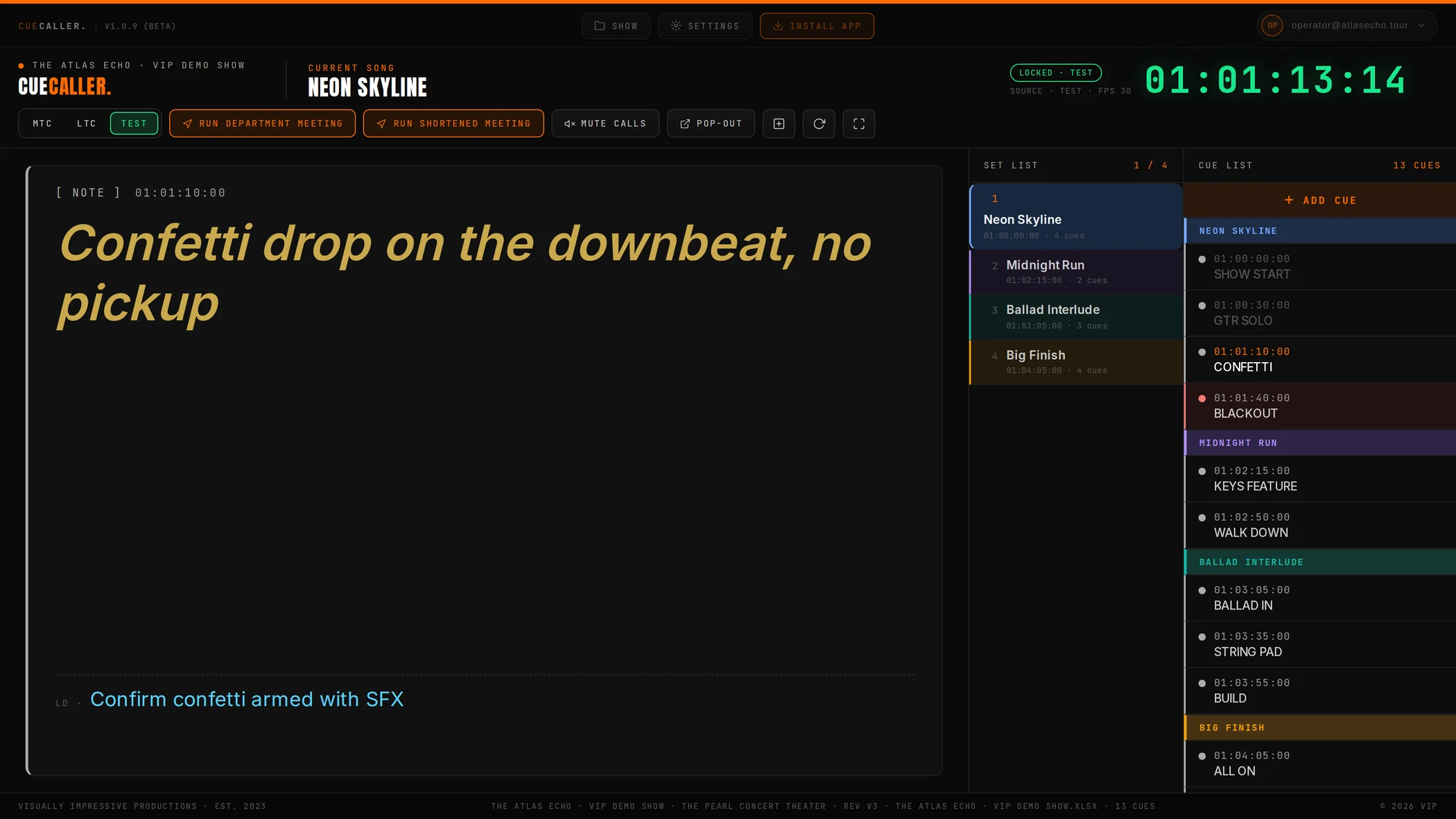
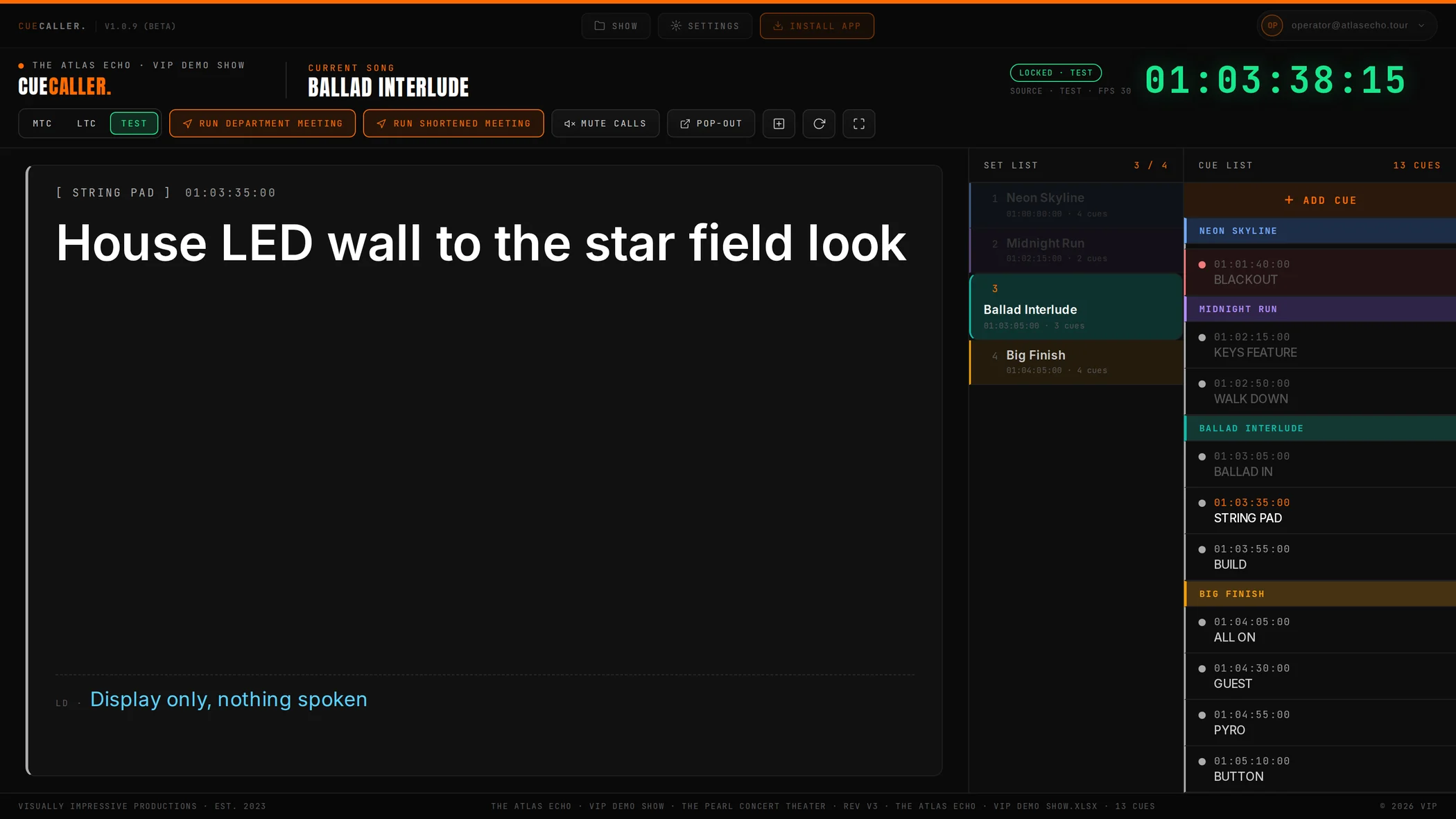
Real formatting does not survive the trip. CSV files, Google Sheet links, and saved sessions all carry plain text only, so an italic cell would silently lose its meaning. The *…* marker rides through every load path unchanged, and the app strips the stars before anyone sees or hears them.
Every cue gets a standby at the lead time and a GO on the stamp. The engine guarantees the GO always wins.
Calls queue instead of clipping each other. Three tiers: GO outranks fade-outs outranks standbys. A higher tier interrupts a lower one mid-sentence and fires exactly on its stamp; the interrupted call replays right after, in priority order. A standby whose cue has already fired is dropped instead of played late. Jump the timecode and the whole queue clears. The result: a GO has never once landed late because something else was talking.
Operators need a beat to react. GO pre fires the spoken GO early by up to 3 seconds so the pickup lands on the stamp instead of the word. Start at 0, watch your ops for a song, and dial in what the crew actually needs.
Some songs never get timecode. Press ↓ or → to step forward through the cue list by hand and ↑ or ← to step back. Each step reads the cue once, with no standby and no GO, which is exactly how a human caller does it. Turn the reading off in Settings → Voice Calls if you would rather step silently. If a clock is running, it snaps back to the real cue on the next frame, so you can never get lost.
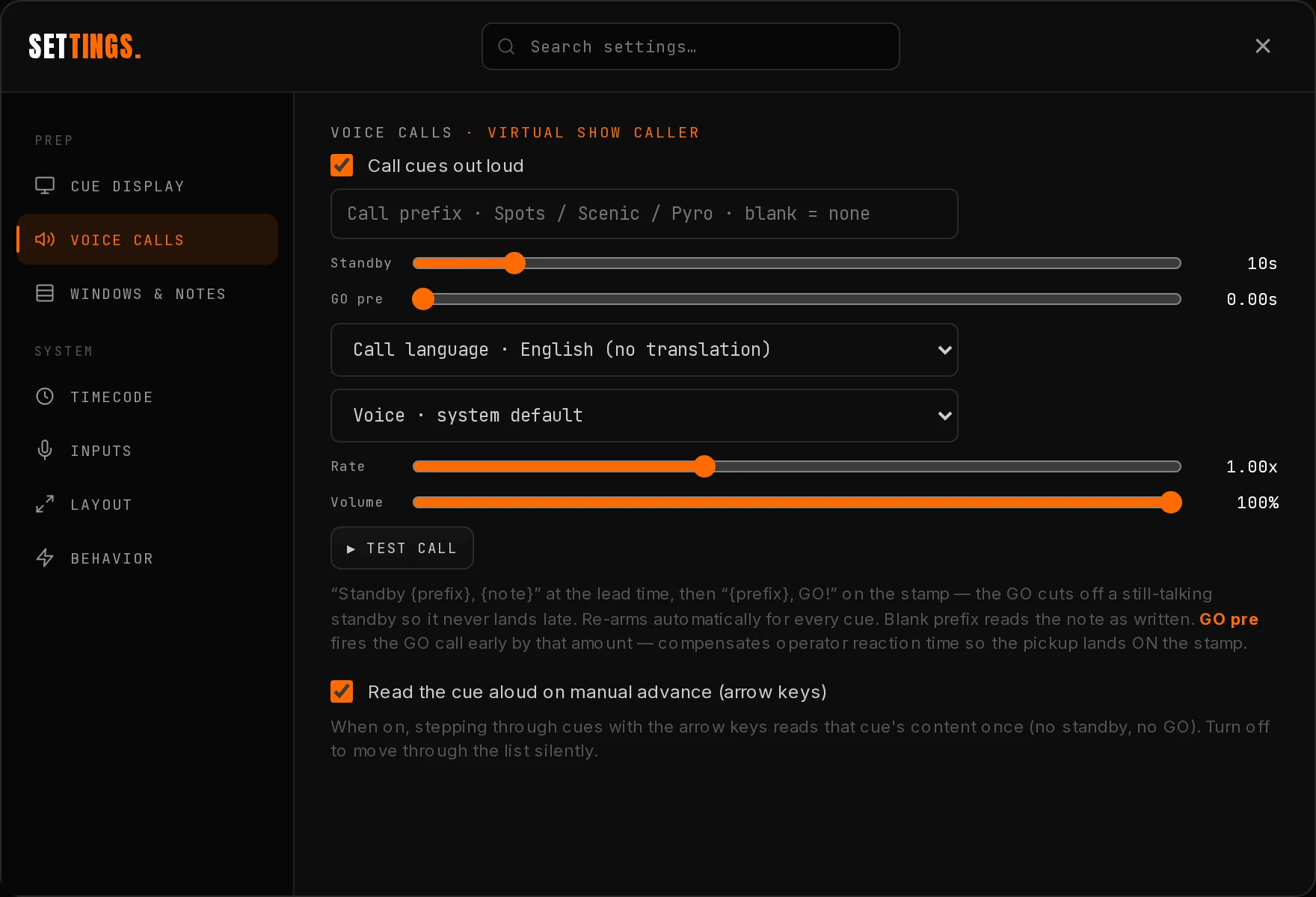
Prefix wraps every call: "Spots" becomes "Standby Spots…" and "Spots, GO!". Set it to your department, or leave it blank so cues are read exactly as written.
▶ Test call speaks a sample so you can audition voice, rate, and volume at house level without a show running. Do this at soundcheck, every time.
Any system voice works. Voices tagged · cloud need internet; for shows, pick one without the tag so the calls keep coming if the venue wifi dies. Much better offline voices install in two minutes, see Offline.
Pick one of 14 languages and CueCaller translates your cue content once, when the show loads, then speaks from that cache. Zero network in the realtime path, and the translations travel inside the saved session. There is a second toggle for translating the command words too, off by default, so "Standby" and "GO" can stay in English while the content is local.
Rewinds, skips, and console restarts cannot produce stale calls. The engine re-arms per cue and only speaks calls that are still ahead of the clock.
Three sources, one segmented switch next to the clock. The clock follows whoever delivered signal last.


| Source | What it is | Field notes |
|---|---|---|
| MTC | MIDI Timecode over USB or a MIDI interface, through Web MIDI. Reads quarter frame and full frame. | Chrome asks for MIDI permission the first time; allow it. Pick a specific device in Settings → Inputs if more than one is connected. |
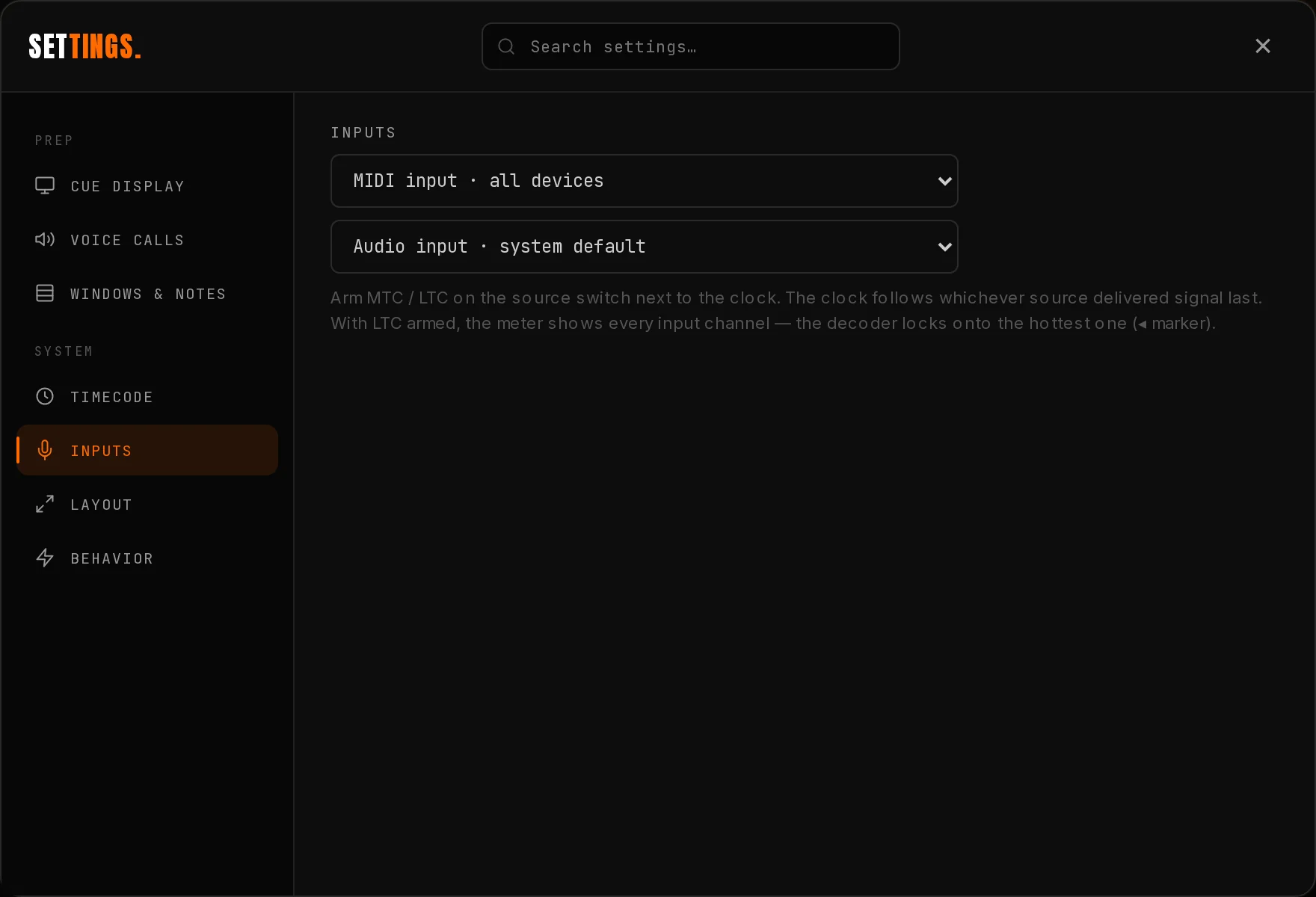
| LTC | Audio timecode into any input: an interface, a mic line, a USB dongle. Decoded in the browser. | The decoder watches every channel of the input and locks onto the hottest one automatically, so a re-patch mid-show fixes itself. A per channel meter lives in Settings → Inputs. |
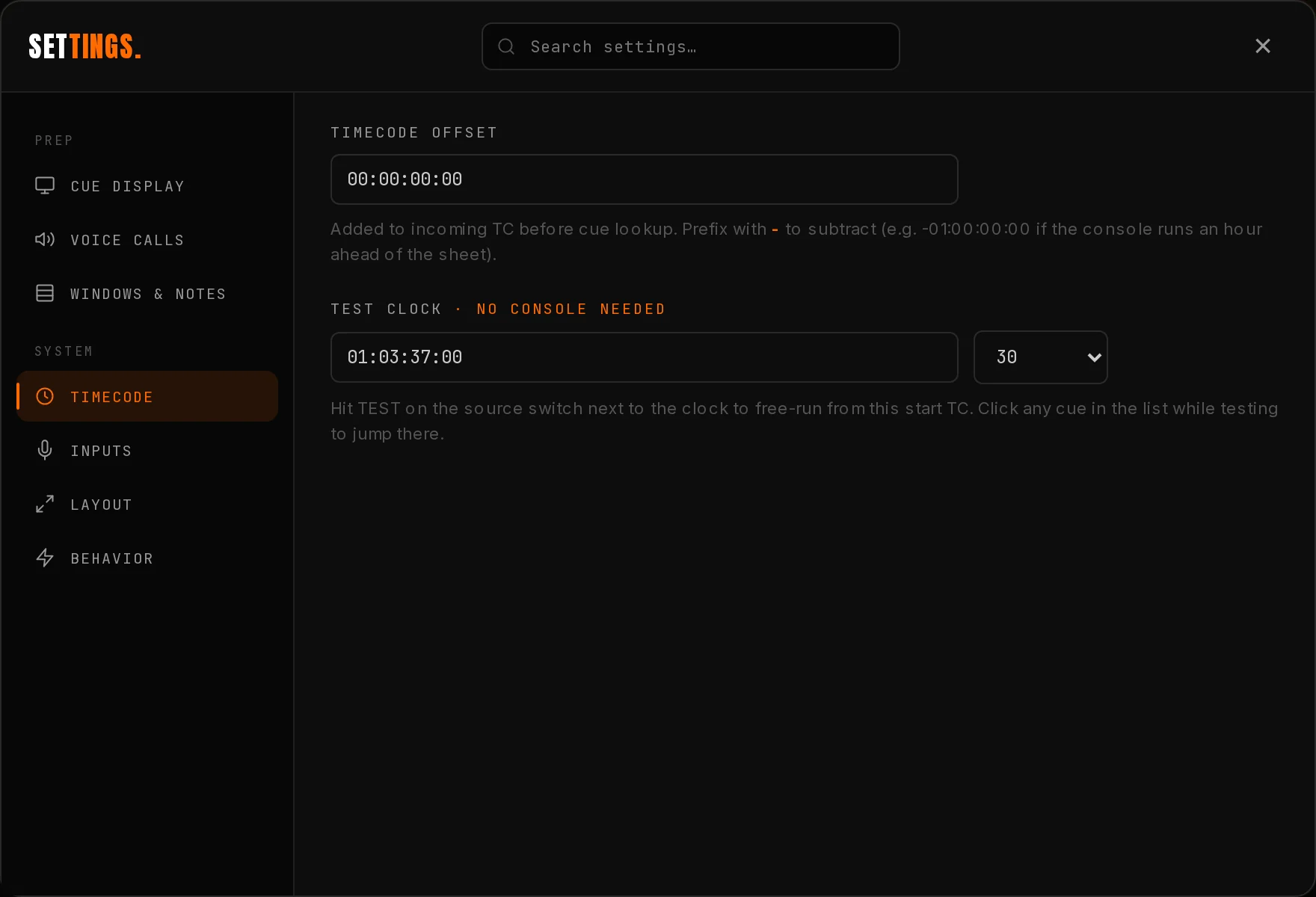
| TEST | Internal free running clock. No console, no cables. | Start TC and fps live in Settings → Timecode. While testing, click any cue or song to jump. The Test button always restarts from the start TC; arming MTC or LTC takes over from it. |
Auto-detected from the incoming signal: 24, 25, 29.97, 30. The detected rate shows under the clock. The sheet's fps field is the fallback before signal arrives.
Settings → Timecode holds a global offset added to incoming TC before cue lookup. Console runs an hour ahead of the sheet? Set -01:00:00:00 and leave the sheet alone.
Open Settings → Inputs and read the meter. Meter dead on every channel: wrong device selected, or Chrome or macOS denied the mic permission. Meter moving but no lock: signal or level problem in the feed. That order, every time.
Add, edit, and delete cues without leaving the app. Link your Google Sheet once and every change lands in the right row of the real document.
Press A, or hit the + button next to the clock, and the Edit Cues pane opens with the current timecode already in the box. Type the call, pick the song, hit Add. The cue slots into its song block in timecode order, the cue list redraws, and the caller arms it immediately. No reload, no re-import.
One button stamps the cue at whatever the clock reads right now. Watch a rehearsal, catch the moment, name it.
The song dropdown pre-selects whichever song that timecode falls inside, so a cue almost never lands in the wrong block.
A ten swatch palette in the form. The color shows on screen and fills the cell in your sheet, so it round trips.
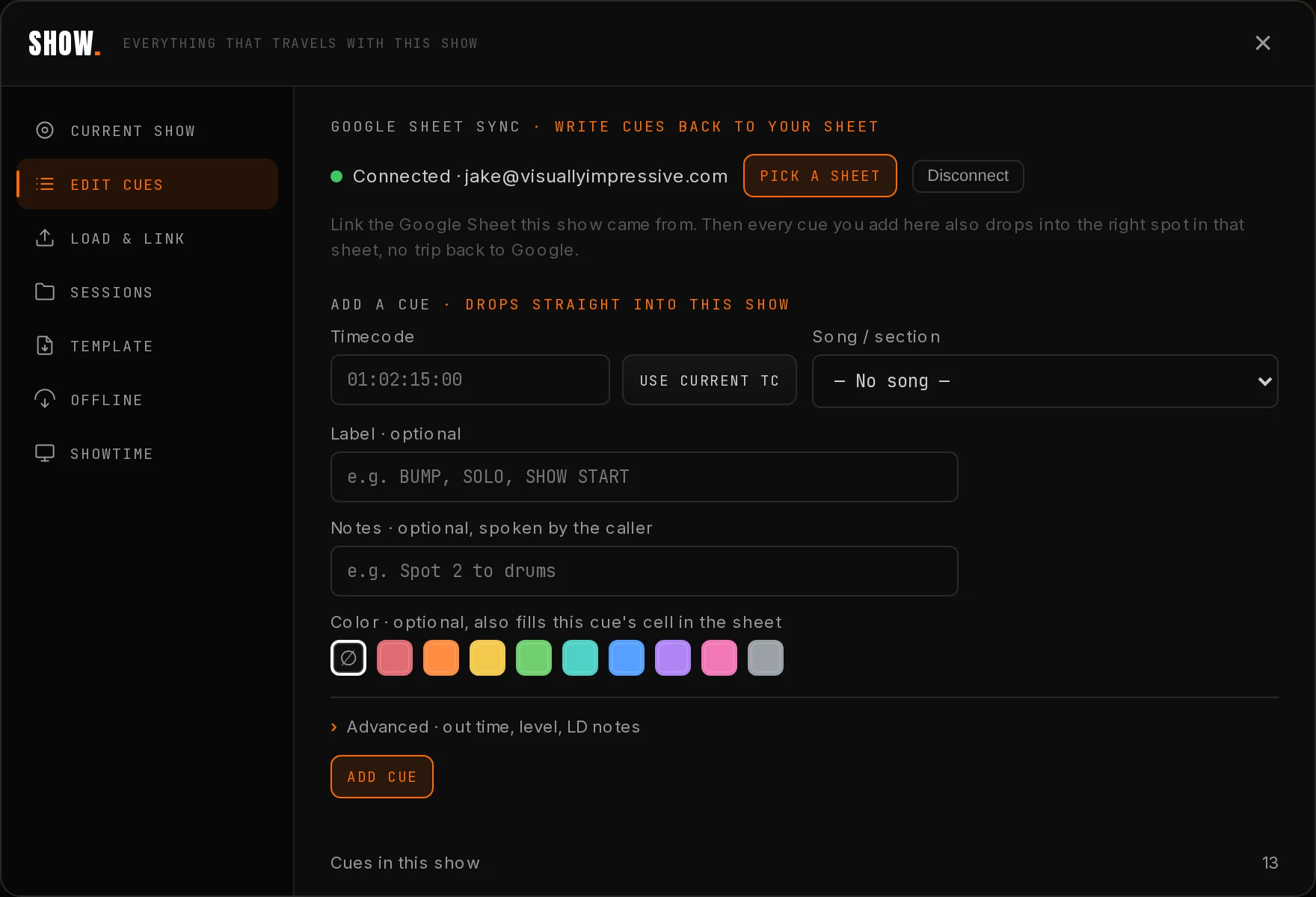
Hit Connect Google once, then Pick a sheet and choose the document this show came from. CueCaller only ever gets access to the one file you pick.
From then on, every add, edit, and delete in the app is written into that sheet: inserted at the correct row inside the right song block, in timecode order, on the right tab. Not appended to the bottom, not overwritten. Delete a cue in the app and the row is removed.
The linked sheet travels with the saved session and unlinks itself when you load a different file, so you cannot accidentally write tonight's changes into last week's document.
Right now CueCaller writes and wins, with a warning. Do not have someone else editing the same rows in Sheets while you are adding cues from the app.
Google access can lapse, or the file can be un-shared. Re-run Pick a sheet. The pick is what grants access, so re-picking is the fix.
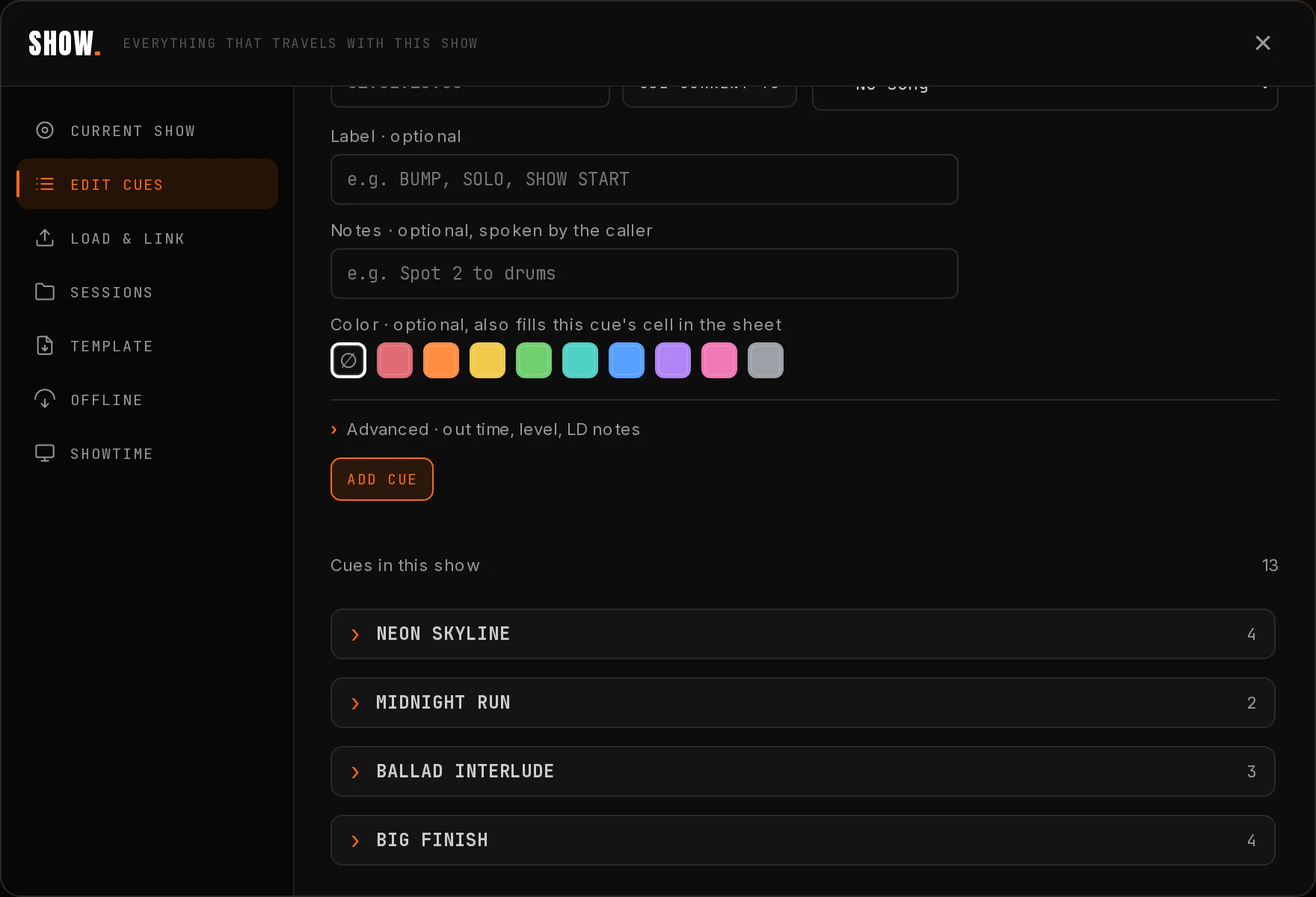
Show → Sessions → New blank show clears everything and gives you an empty active show, then drops you into Edit Cues. Build a whole cue sheet inside the app, cue by cue, then save it as a session or push it into a sheet.
Three ways in. One cloud store, so the same show follows you to any machine.
Show → Load & Link → Load Cue Sheet File, or just drag a .csv or .xlsx anywhere onto the page. The classic way.
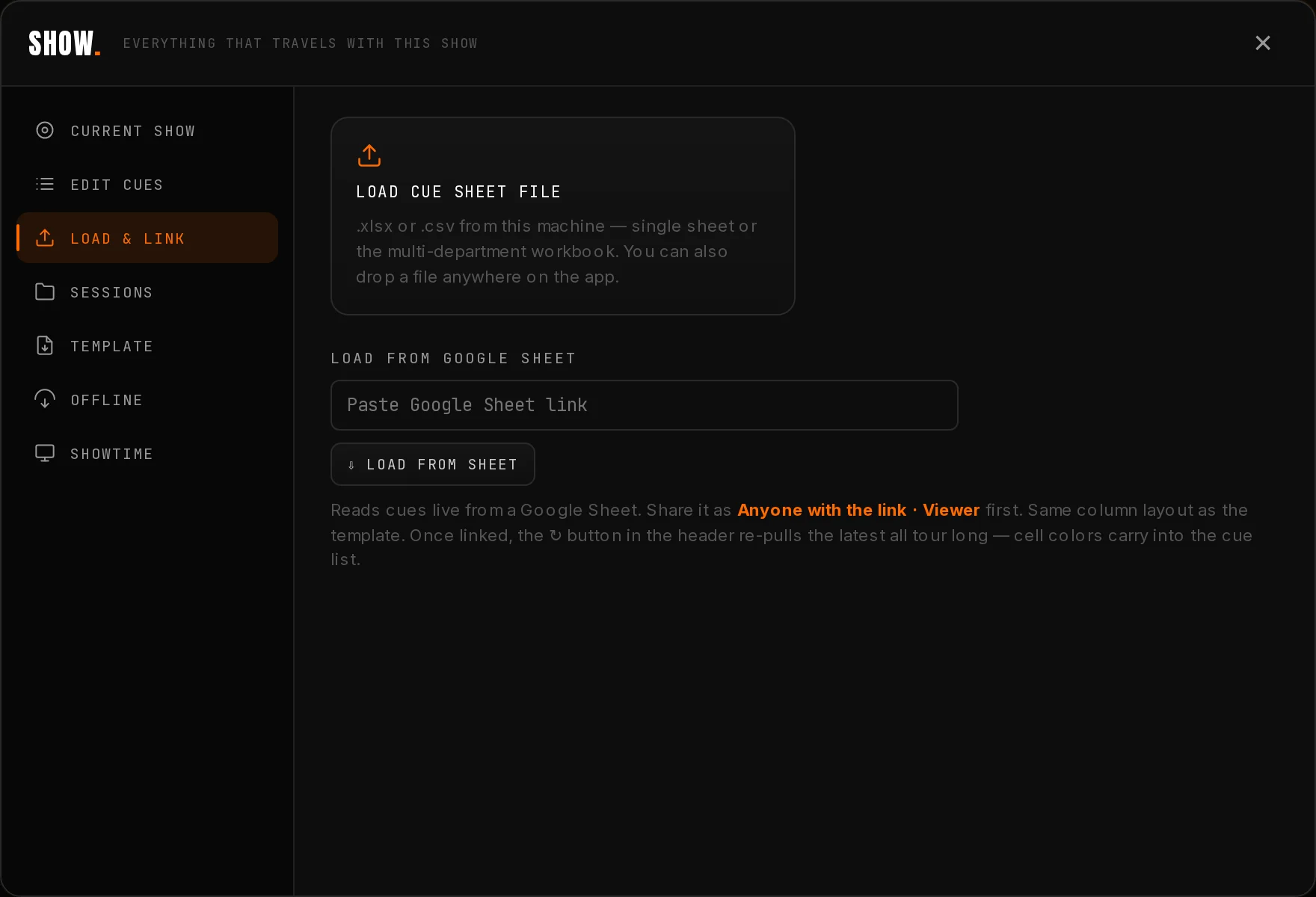
Paste a share link in Show → Load & Link. Edited the doc? Hit ↻ in the header and the latest rows, and their colors, pull straight in.
One click from the cloud store: cues, show info, meeting, logo, and every setting restore together on any machine you sign in on.
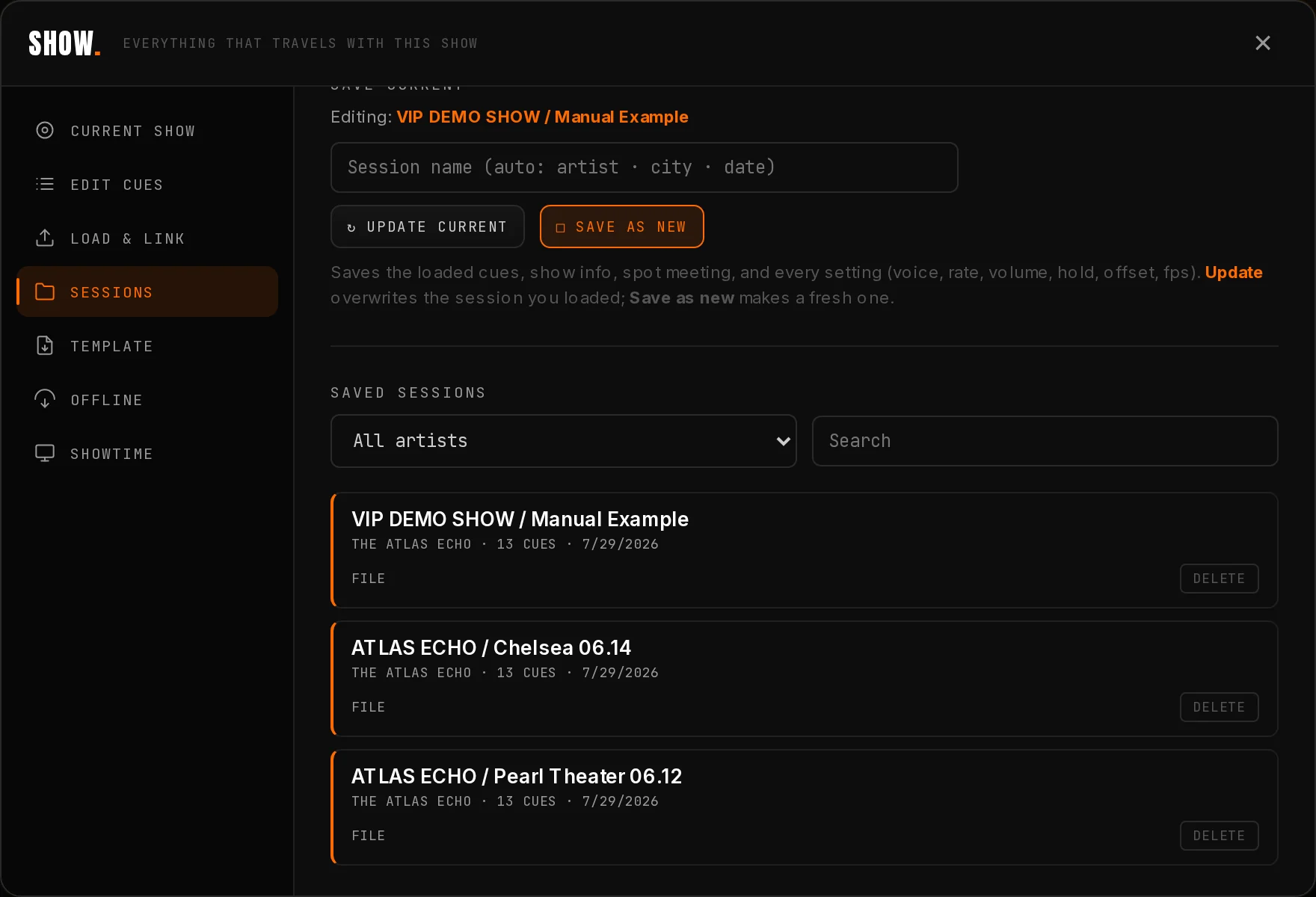
Update current overwrites the session you loaded, same name, same slot. Save as new makes a fresh one. Loading a file or a new sheet link unbinds you, so you cannot accidentally overwrite last night's show with today's experiment.
Save while a Google Sheet is loaded and the session remembers its link. Load it anywhere and ↻ still re-pulls the latest rows.
Cues, song banners, set list, show info, both meetings, your uploaded logo, the linked sheet, translations, and all settings: voice, rate, volume, prefix, leads, GO pre, hold, offset, fps, text style, panel sizes, and your pop-out group. A loaded session makes any machine yours.
The link must be shared as Anyone with the link · Viewer, with the same column layout as the template. If a sheet link ever loads oddly, a few cues instead of all of them, load the saved session or the .xlsx instead; both bypass Google's CSV export quirks.
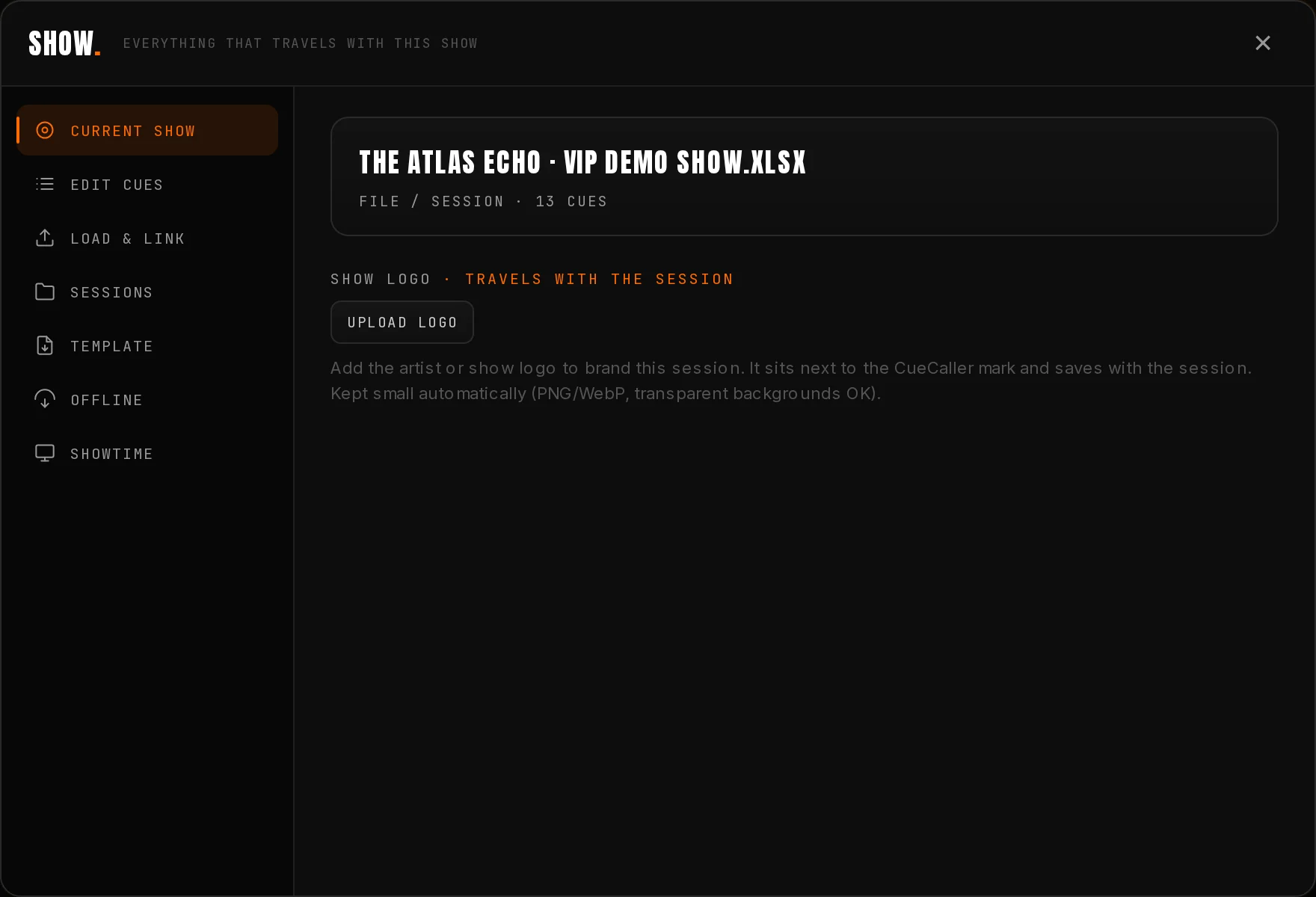
Upload a logo in Show → Current Show and it replaces the CueCaller wordmark in the header at full size. It gets compressed down to a small image automatically, saves with the session, and stays put on that machine. Transparent PNGs look best on the dark UI.
Hand a laptop to a spot op with the tour logo across the top and it stops looking like somebody's browser tab.
One show file, a department per lane. Spots, lighting, audio, video, lasers, pyro, automation, scenic, management, notes. Each seat picks its lane and hears only its own calls.
When a show has more than one department, a Department dropdown appears at the top of the screen. Pick a lane and the machine swaps the cue list and re-points the voice caller at that lane, so the spot op hears spot calls and the pyro tech hears pyro calls off the same file. A Now tracking banner confirms each switch.
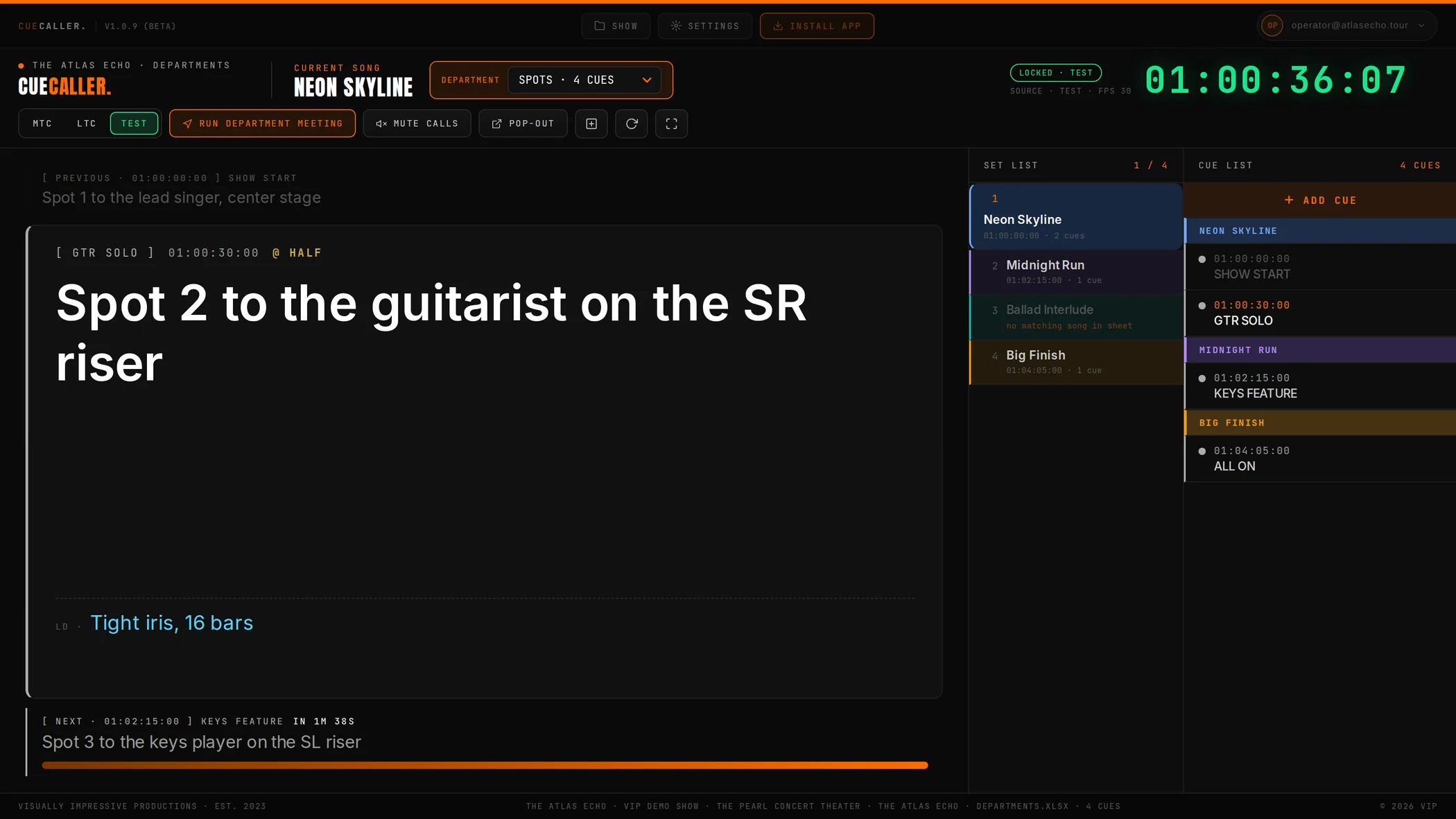

The Production template has a MASTER tab plus a department tab. Fill MASTER once and its show info and set list feed every department; copy the department tab once per lane, then load the workbook and each cue tab becomes a lane.
Prefer one tab? Add a Department column and tag each cue with its lane. The app splits them into the same dropdown.
Lanes survive a reload, a saved session, and an exported offline file. The dropdown comes back with them.
Multi-department is a Production and Tour feature. On Operator, a show opens to its first cue tab only and there is no dropdown. One clean lane.
Departments work from a Google Sheet link too, but only when your tabs are named exactly like the template: Spots, Lighting, Audio, Video, Lasers, Pyro & SFX, Automation, Scenic, Management, Notes. Rename a tab and it drops off the Google link. An .xlsx file always reads every tab regardless of name.
The app calls cues to your operators. Showtime tells everyone else backstage what is happening tonight, on a link anyone can open.
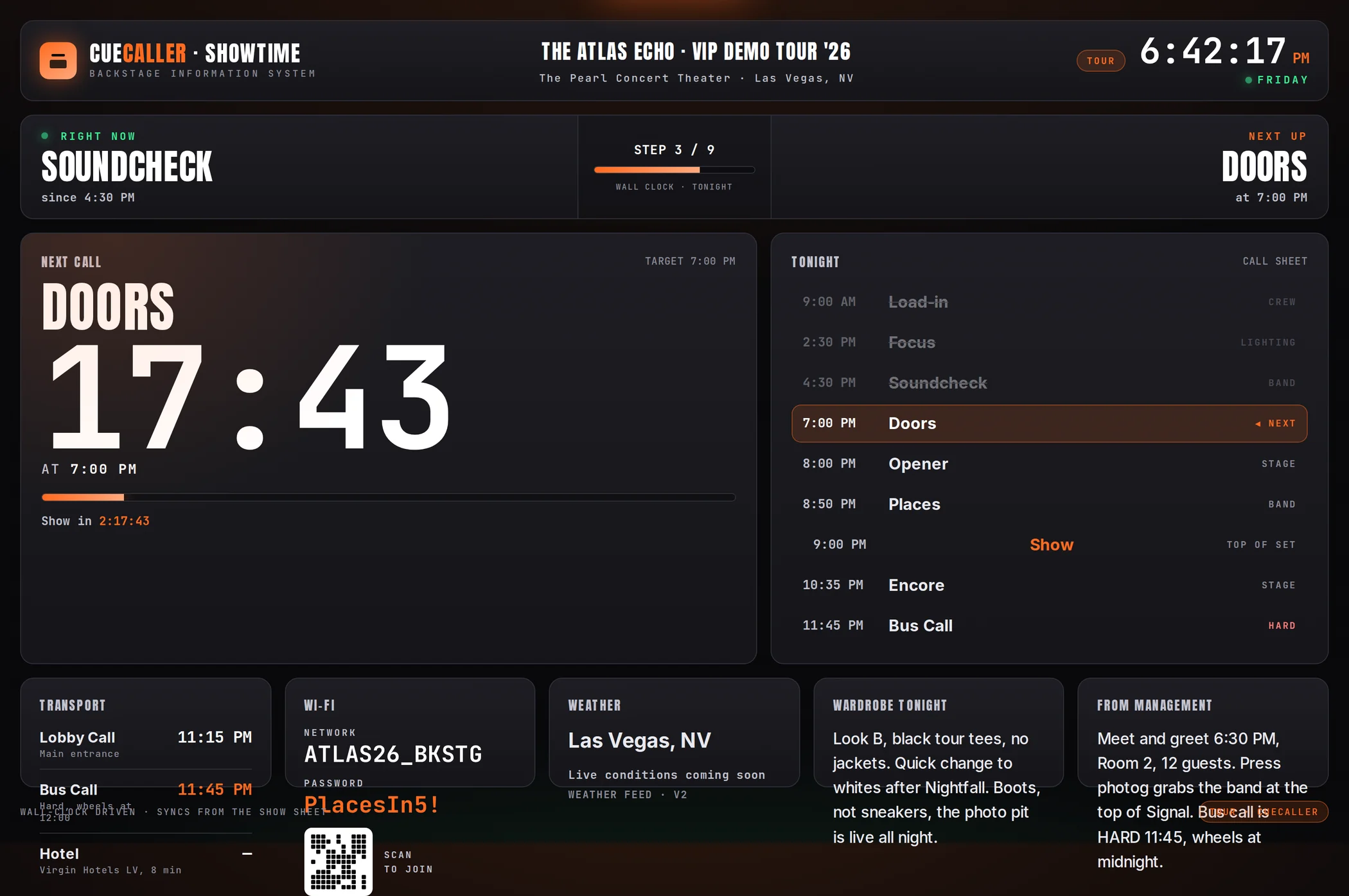
Showtime is a published, auto-updating web page for the dressing rooms, the crew's phones, and the venue's backstage TVs. It runs on the wall clock, not timecode, and it reads from a BACKSTAGE tab in the same Google Sheet as your show. Call times, the countdown to the next call, wifi, wardrobe, notes from management, transport. No login to view.
The important part: the board links back to the sheet, not to your laptop. Close the lid, go do focus, and the venue TVs still update the moment somebody edits the sheet.
Keep a BACKSTAGE tab in the show sheet current through the day.
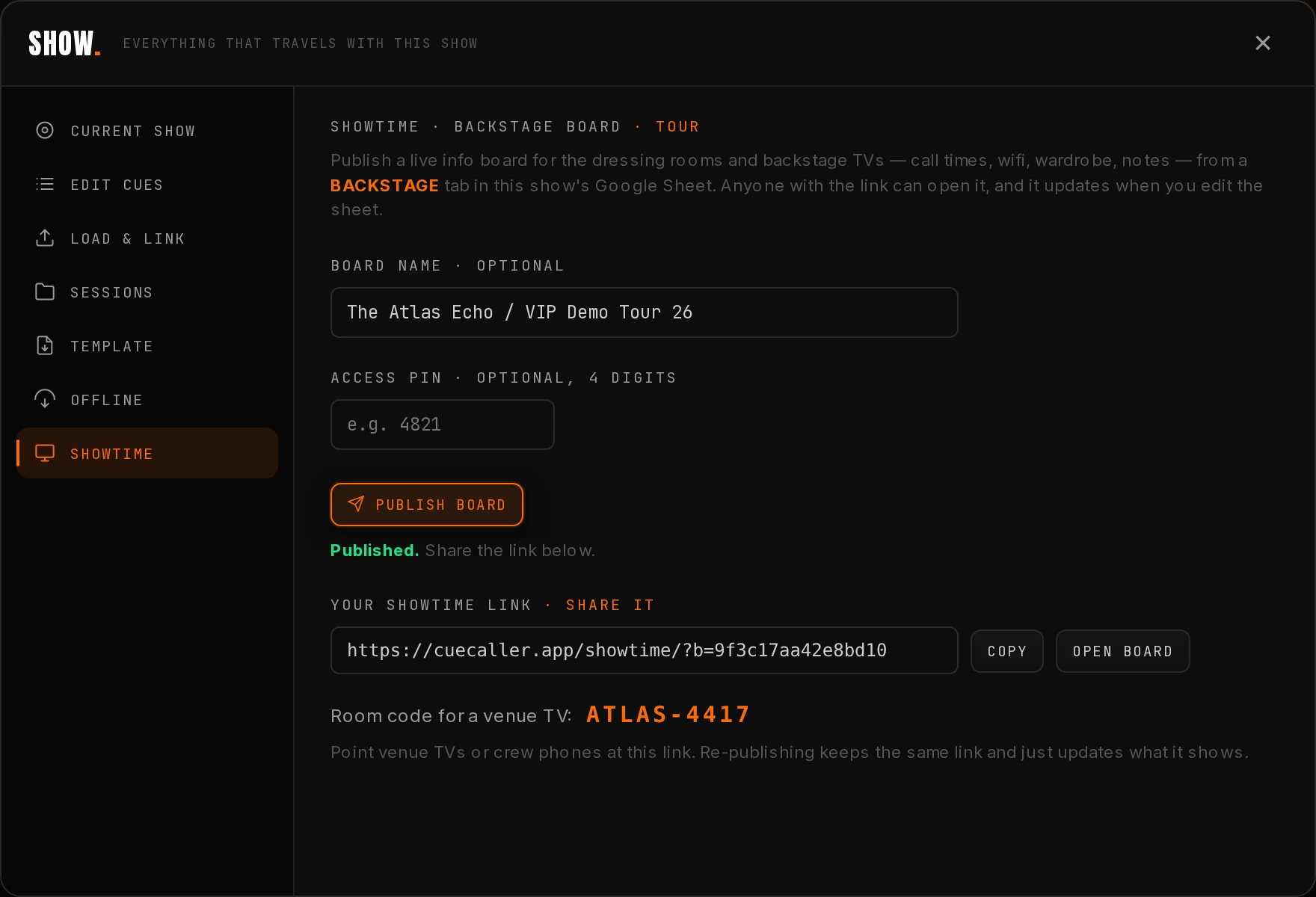
Show → Showtime → Publish board. You get a link and a room code.
Venue TVs, crew phones, the PM's own screen. Bookmark it once.
Every screen catches up within seconds. Nothing else to do.
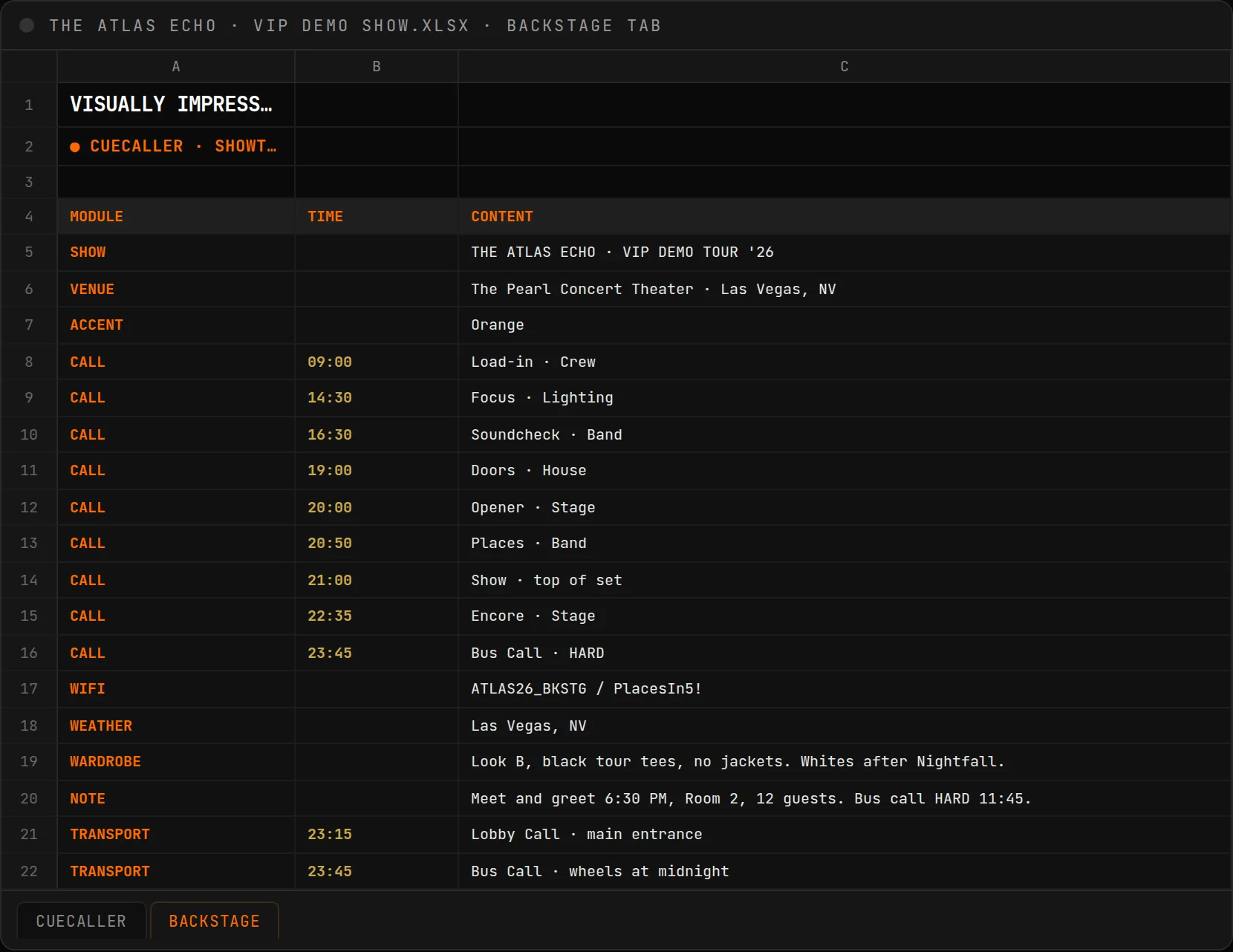
| MODULE | TIME | What it does on the board |
|---|---|---|
| SHOW | · | The tour or show name across the top. |
| VENUE | · | Venue and city, under the name. |
| CALL | 19:00 | One row per call. Drives the call sheet, the "right now" and "next up" strip, and the big countdown. Put HARD in the content and it reads as hard. |
| WIFI | · | Network and password, in the biggest type on the page. |
| WARDROBE | · | Tonight's look, quick changes, footwear. |
| NOTE | · | Notes from management. Meet and greets, press, bus call reminders. |
| TRANSPORT | 23:15 | Lobby call, bus call, hotel. Times are optional per row. |
| WEATHER | · | The city to show conditions for. Live weather arrives in a later release; for now it holds the place. |
| ACCENT | · | A color name or hex for the board's accent. You can also set it from the eight swatches or the custom picker in the Showtime pane. |
All times are wall clock, 24 hour. The cue caller's loader skips this tab entirely, so it can never confuse your timecode show.
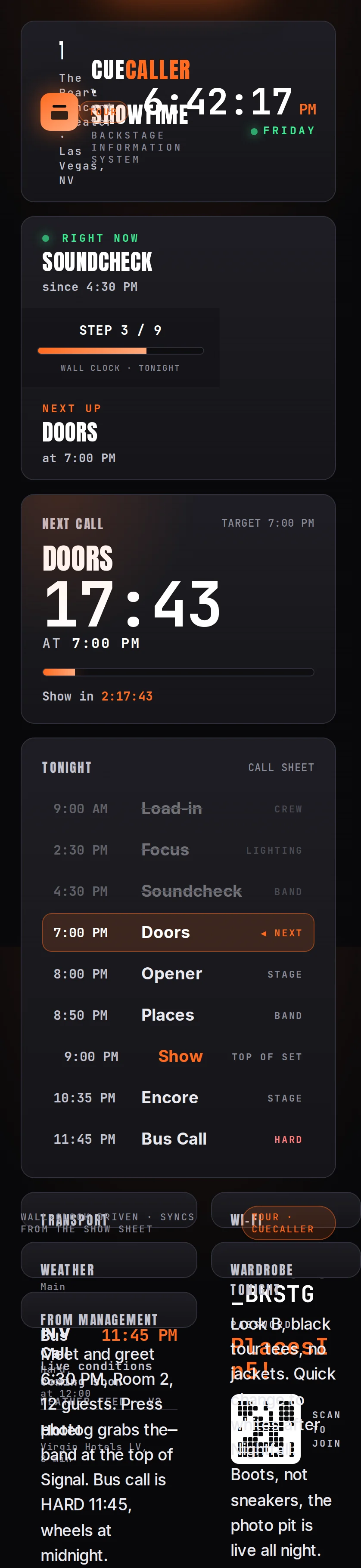
Publishing a board is Tour tier. Viewing it is free and needs no account, which is the whole point: venue TVs, local crew, and the band all just open a link.
The link is per tour, not per show, and it rolls to the current date automatically. Share it once at the start of the run. Re-publishing updates what it shows and keeps the same address.
The link is unlisted and unguessable, and search engines are told to ignore it. If you want another layer, set the optional 4 digit PIN when you publish. It is off by default.
The clock and countdowns run on the device, and the board re-reads the sheet on a short interval. A flaky venue connection slows the updates; it does not stop the clock.
Put the cue card on the monitor the operator can see, and keep the cue list on yours.
Tick the panels you want in Settings → Layout → Pop-out group, then hit the Pop-Out button next to Mute. They all leave together into one window you can drag to a second screen, resize, and fullscreen. Each pane inside it scrolls on its own, so a long cue list never pushes the current cue off the edge.
Click Pop-Out again, or Redock in the popped window, and everything comes home. The individual ↗ buttons on each panel still work if you only want one thing out.
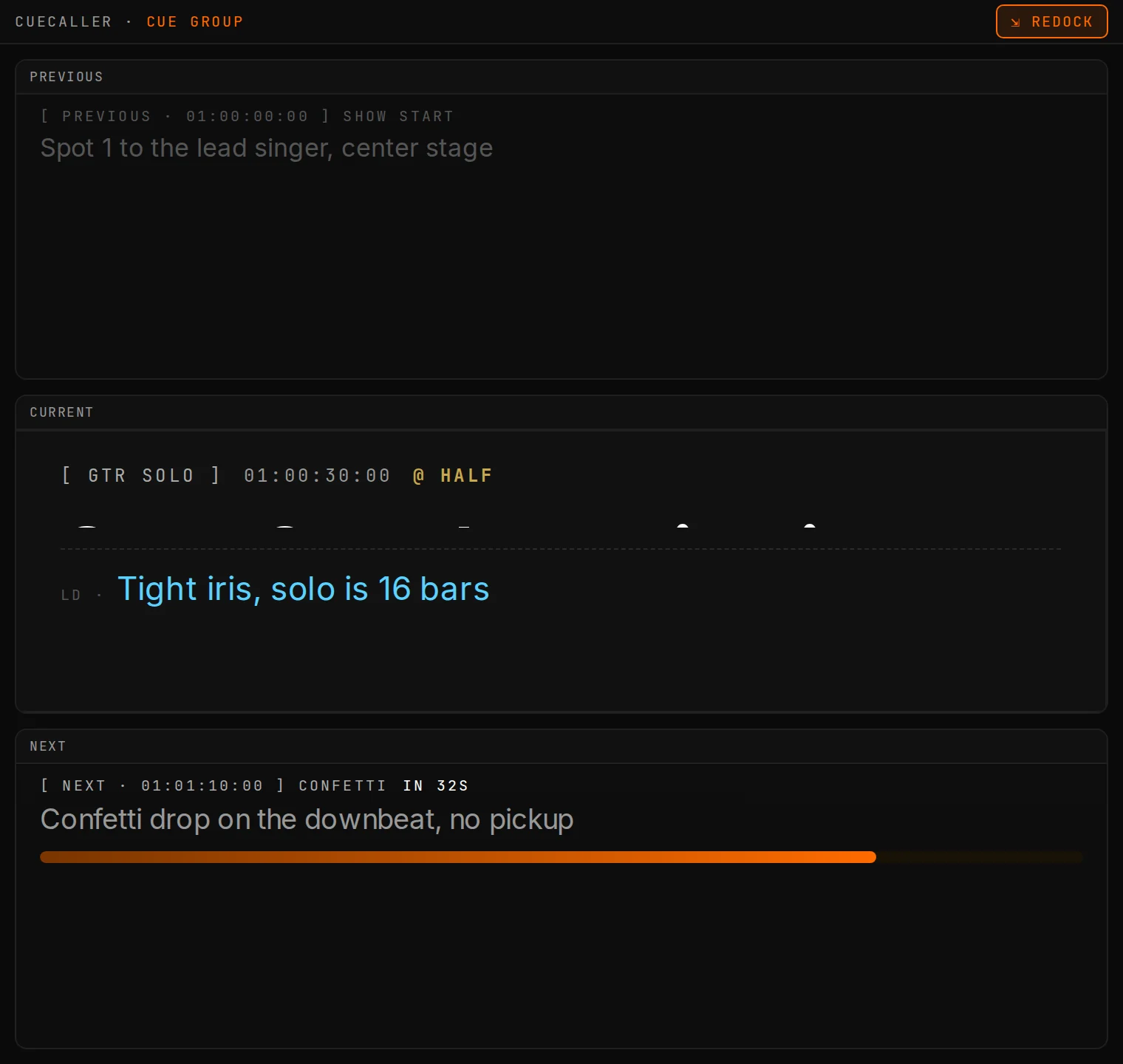
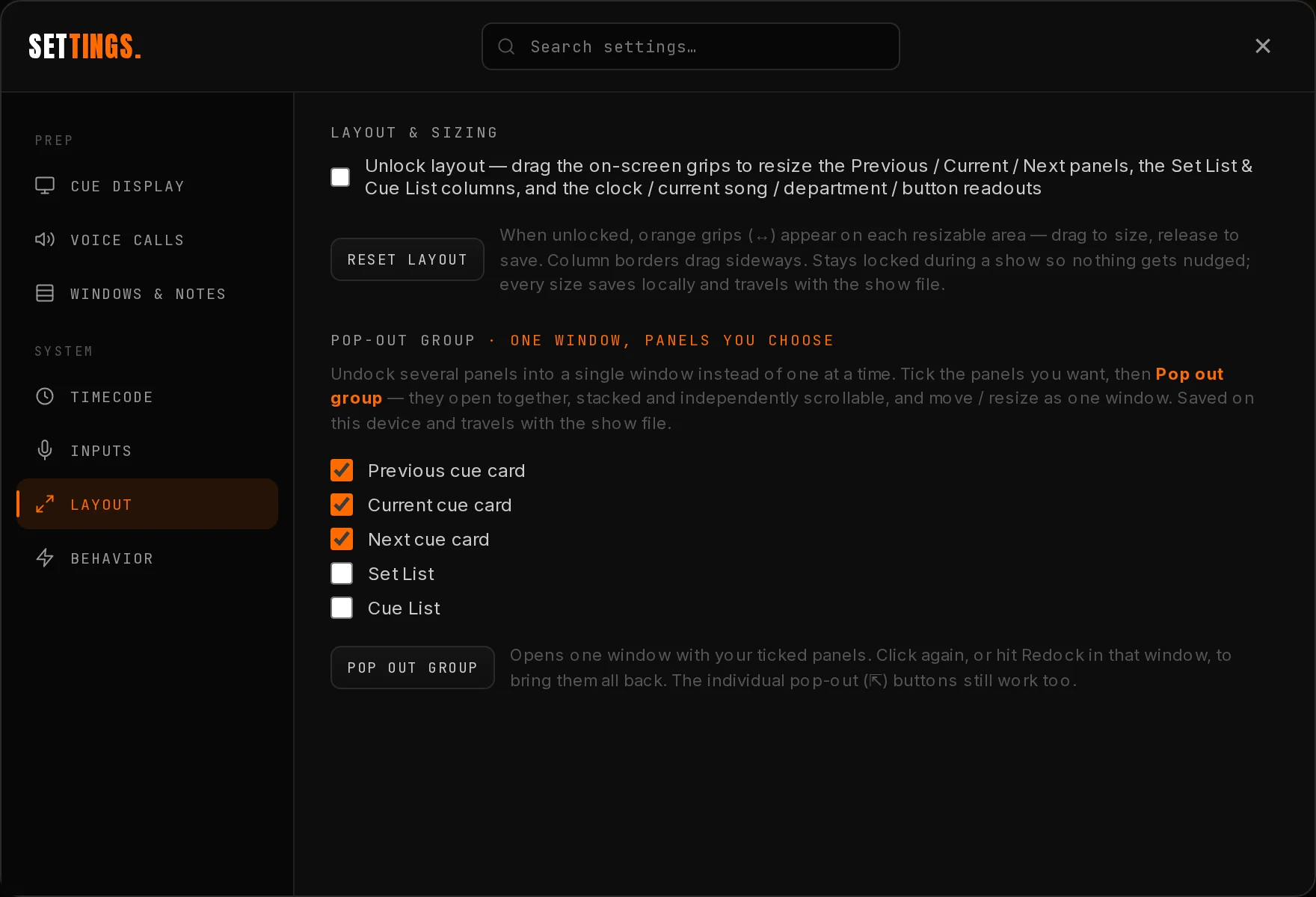
The same tab has Unlock layout. Orange grips appear on every resizable area: the three cue panels, the set list and cue list columns, and the clock, song, department, and button readouts. Drag to size, then leave it locked for the show so nothing gets nudged.
Panels that are popped out leave a placeholder behind, so the main window collapses down to what is still docked. Handy on a small laptop screen driving a big operator monitor.
Bake tonight's show into the installed app and run it with the venue wifi dead.
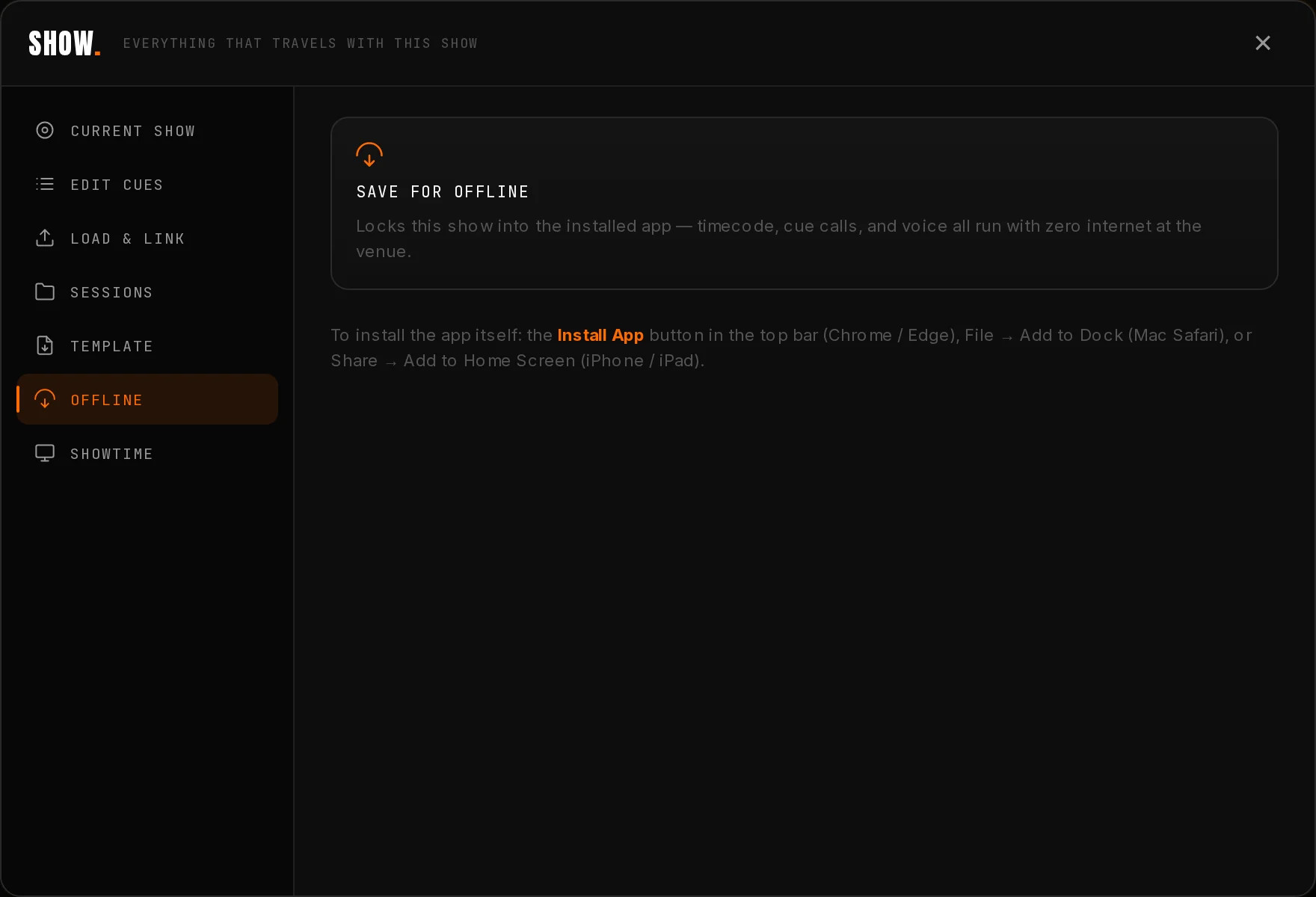
With a show loaded, open Show → Offline and hit Save for Offline. Then install CueCaller as an app: the Install App button in the top bar on Chrome or Edge, File → Add to Dock in Mac Safari, or Share → Add to Home Screen on iPhone and iPad.
The installed app launches with your show already loaded and runs with zero internet. LTC, MTC, cue calling, and the voice all work at the venue with the network unplugged. Chrome asks for mic and MIDI permission once.
Cues changed? Load the new sheet and hit Save for Offline again. Re-save any time; the installed app always carries the last save.
Your subscription is verified with a signed offline license and a grace window, so a legitimate run on the road never locks you out mid-show.
Offline shows are a Production and Tour feature. Operator runs online.
The calls use your computer's speech engine. Voices tagged · cloud in the picker need internet; everything else runs with the network unplugged. The stock offline voices are robotic. The premium ones are not, and they are free:
System Settings → Accessibility → Spoken Content → System Voice → Manage Voices. Download a couple of (Premium) or (Enhanced) voices. Quit and reopen Chrome, then pick the voice in Settings and audition it with ▶ Test call.
Settings → Time & language → Speech → Manage voices → Add voices. Install the "(Natural)" ones. Restart Chrome, pick the voice, test.
Press S. Seven tabs and a search box. Everything persists per machine, and saved sessions carry all of it.
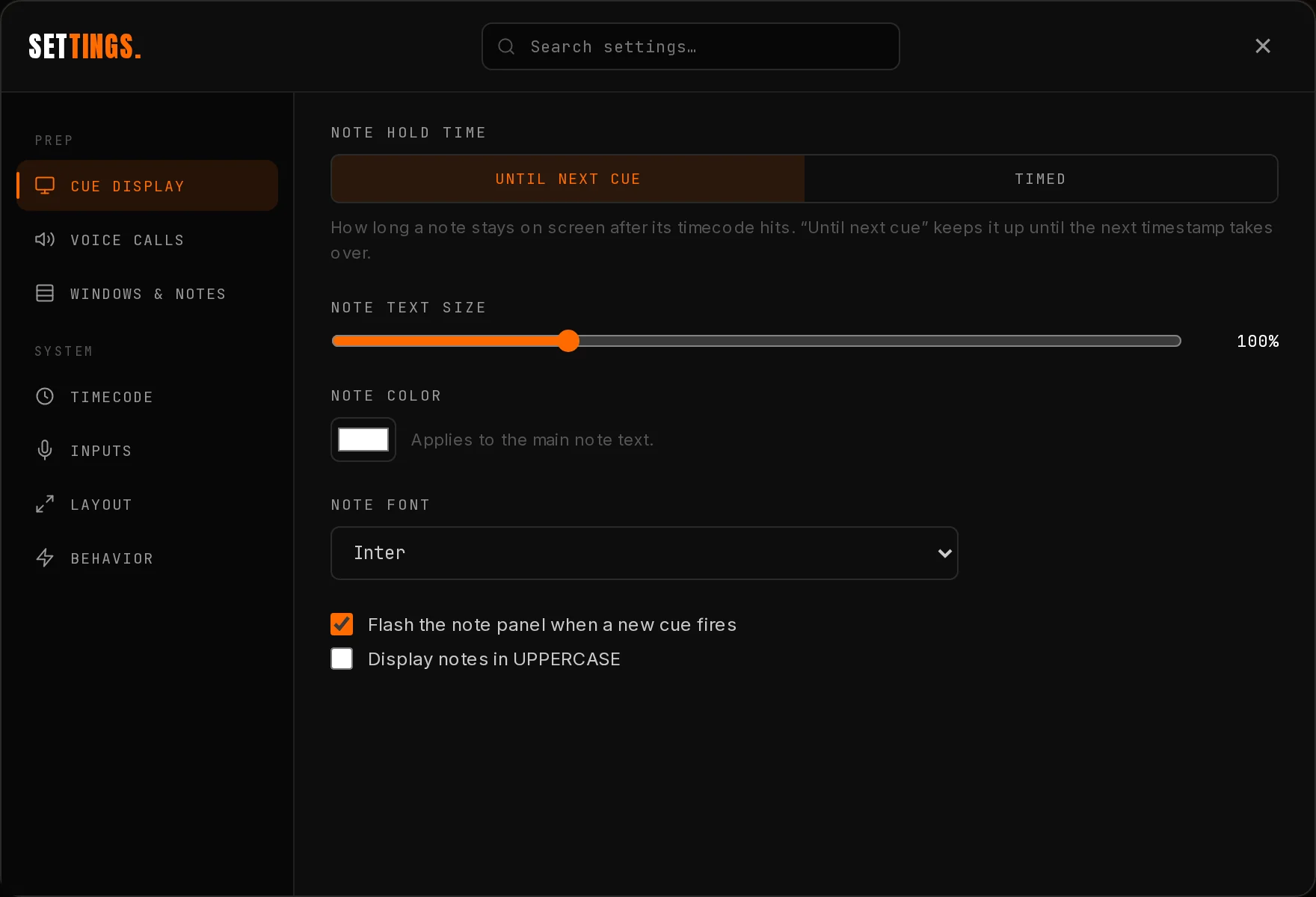
| Tab | What lives there |
|---|---|
| Cue Display | Note hold (Until next cue or Timed, 1 to 120 seconds), text size, any color, ten fonts, UPPERCASE, and flash on new cue. Make it readable from the spot chair, not from your desk. |
| Voice Calls | The whole caller: on and off, prefix, standby lead, GO pre, call language, voice, rate, volume, read-on-manual-advance, test call. Covered in The voice. |
| Windows & Notes | Show or hide the Previous, Current, and Next panels; the ones you keep expand to fill the space. Plus color, size, and hide for the cyan notes line. |
| Timecode | The global timecode offset, and the test clock's start TC and frame rate. |
| Inputs | Pick a specific MIDI device and audio input. Live per channel LTC meter. |
| Layout | Unlock layout to drag-resize every panel, column, and readout; Reset layout puts it all back. Plus the pop-out group, see Pop out your panels. |
| Behavior | Show mode: when timecode locks, the top bar dims so live controls own the screen. Hover or tap brings it back. Turn it off here. The keyboard map lives here too. |
Same app, same show, same engine. The controls just move under your thumb.
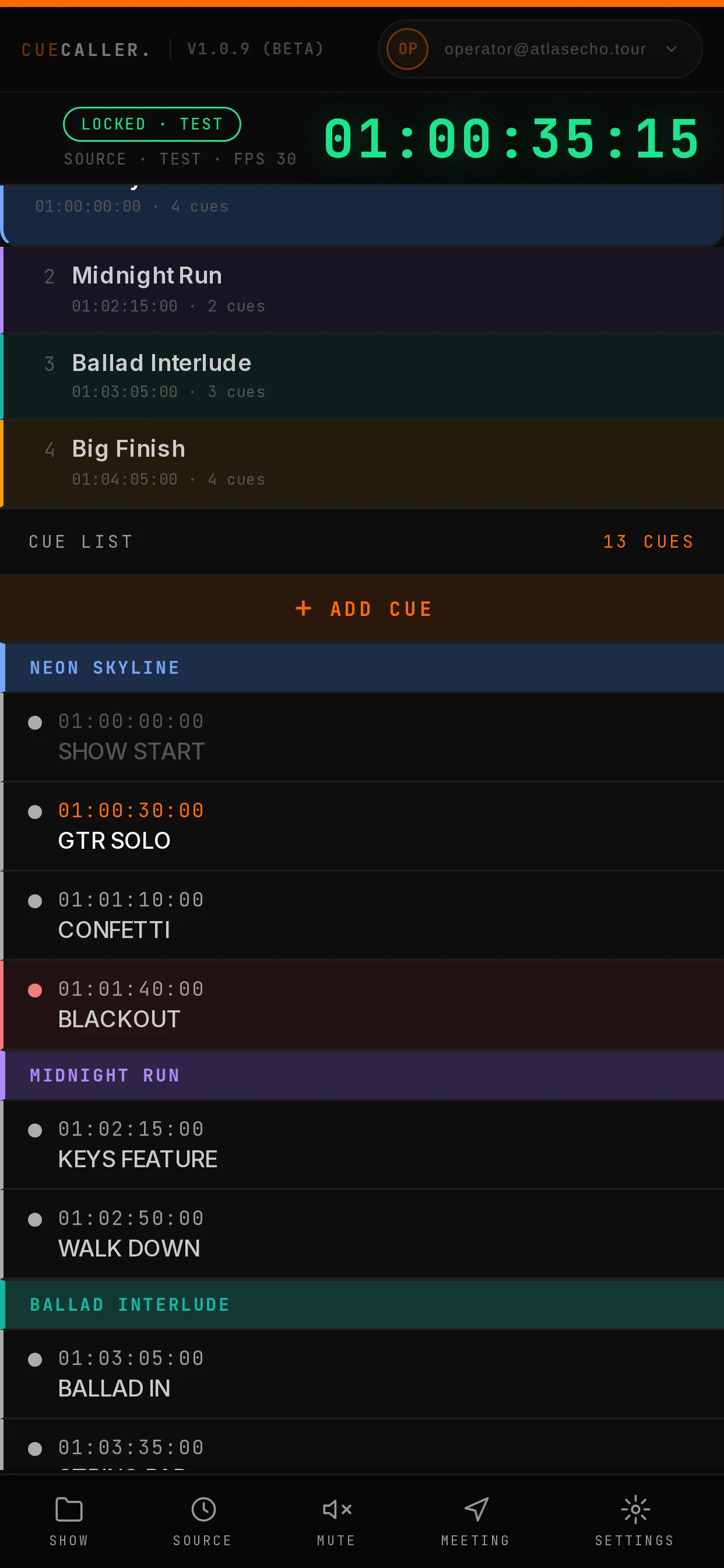
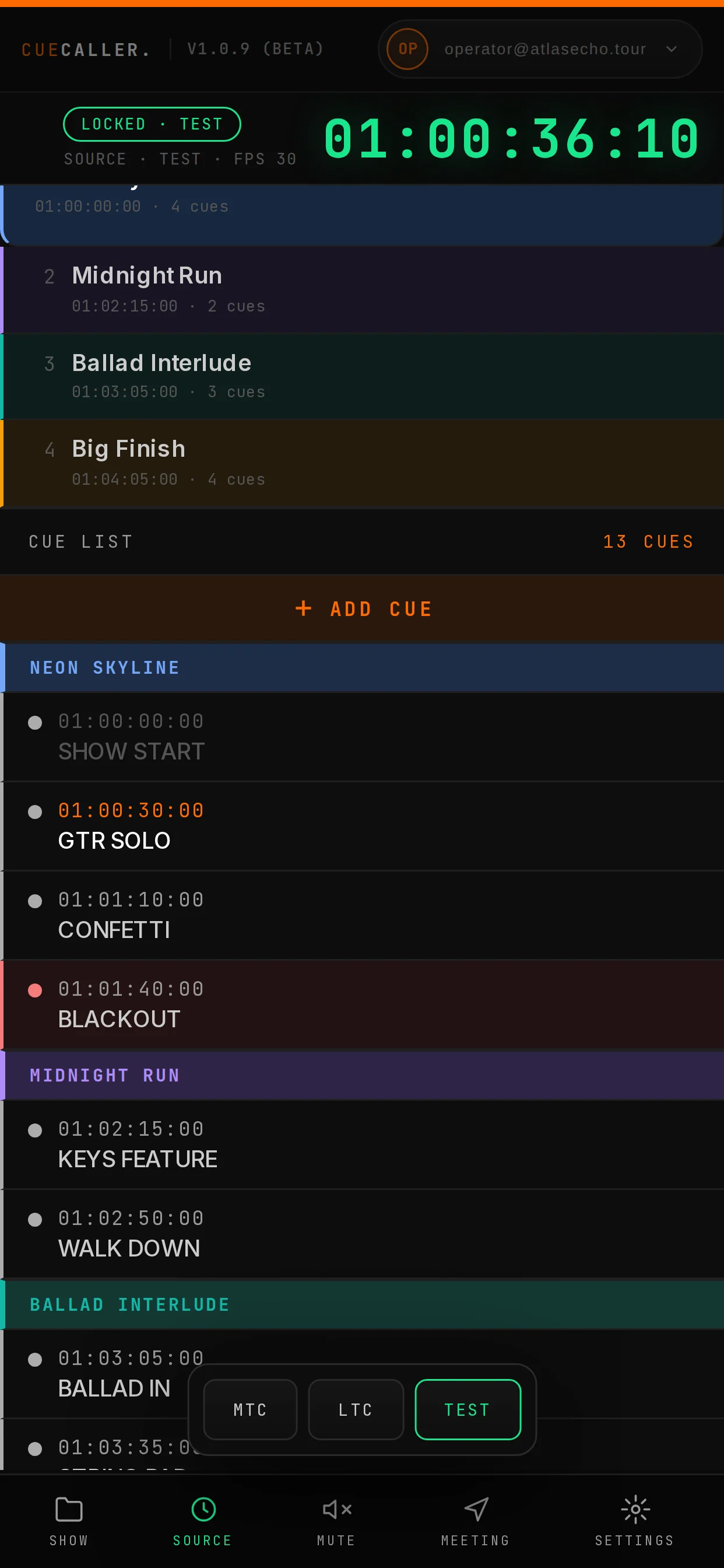
Tablets and narrow windows go icon-only in the header so every control still fits on one row. Dialogs go full screen with a horizontal tab strip.
Share → Add to Home Screen on iOS gives you a real app icon and a fullscreen window. Combined with Save for Offline, a phone becomes a perfectly good spot-chair display.
The cue engine is the same in every tier. The clock, the voice, the priority queue, the colors, offline voices: all of it, everywhere.
| Feature | Operator | Production | Tour |
|---|---|---|---|
| Timecode calling, MTC / LTC / test | ✓ | ✓ | ✓ |
| The voice caller and all its settings | ✓ | ✓ | ✓ |
| Cue and section colors | ✓ | ✓ | ✓ |
| Google Sheet links, .xlsx, .csv | ✓ | ✓ | ✓ |
| Pop-out panels and layout sizing | ✓ | ✓ | ✓ |
| Saved cloud sessions | 1 | unlimited | unlimited |
| Multi-department lanes | ✗ | ✓ | ✓ |
| In-app cue editor | ✗ | ✓ | ✓ |
| Two-way Google Sheets sync | ✗ | ✓ | ✓ |
| Offline show file | ✗ | ✓ | ✓ |
| Translated voice calls, 14 languages | ✗ | ✓ | ✓ |
| Team seats and a shared show library | ✗ | ✗ | ✓ |
| Publish a Showtime backstage board | ✗ | ✗ | ✓ |
Your tier is in the account chip, top right of the app. Anything gated shows you a one line note rather than hiding silently, so you always know whether a feature is missing or just not in your plan.
Load the show: session, sheet link, file, or the offline file on the show laptop.
Check the footer: right show, right rev, right cue count. Two seconds that save a night.
Pick your lane in the Department dropdown, if the show has more than one.
Arm MTC or LTC, roll timecode from the console, and confirm the clock goes green with the right fps.
Voice check: ▶ Test call at house volume. An offline voice with no · cloud tag, rate and volume where the crew likes them.
Size the screen: text big enough for the chair it is sitting in, and pop out the panels the operator needs.
Run the department meeting from the overlay at the half hour.
F for fullscreen. Watch the first standby land. You are running.
| Symptom | Fix, in order |
|---|---|
| Clock red, no lock | Source armed? For LTC: Settings → Inputs meter. Dead meter means device or mic permission (Chrome site permission, then macOS → Privacy → Microphone → Chrome). Moving meter and no lock means a level or line problem in the feed. |
| Clock green, wrong cues | Wrong rev loaded, or the console clock disagrees with the sheet. Set the offset in Settings → Timecode instead of re-stamping 60 rows mid-show. |
| No voice | Settings → Voice Calls: "Call cues out loud" on? Volume up? A · cloud voice with no internet is silent, so pick an offline voice. A meeting playing also pauses cue calls until it ends. |
| A cue shows but says nothing | That is by design if the CUE is blank or wrapped in (parentheses). See Quiet cues. |
| Google Sheet loads few cues | A known Google export quirk on odd header cells. Load the saved session or the .xlsx file, and flag the sheet to us after the show. |
| A cue added in the app did not reach the sheet | Check the sync badge at the top of Edit Cues. If it says re-connect, run Pick a sheet again. The local add always succeeded, so your show is fine either way. |
| Showtime board is empty | The sheet needs a tab named BACKSTAGE and must still be shared as Anyone with the link, Viewer. Fix the sharing and the board fills in on its next read. |
| Test clock will not stop | By design the Test button restarts the run. Arm MTC or LTC to take over, or reload the page. |
| Browser tab hidden | Keep the tab visible on the show machine. Background tabs get throttled by Chrome. The decoders survive it, but the display is the whole point. Fullscreen it. |
Rehearse once in TEST before you ever plug into a console. Five minutes clicking through your cue list catches a bad stamp, a missing star, or a weird call long before soundcheck does.
Email [email protected] with the show file if you can. If it is show critical, say so in the subject line.
O show hub · S settings · A add cue · M mute · F fullscreen · ↓↑ step by hand · Esc close
TIMECODE · LABEL · CUE · OUT TIME · LEVEL · NOTES
*text* spoken once at the stamp, no standby or GO · (text) or a blank CUE, shown and silent
{artist} {show} {venue} {city} {date} {fps} {rev} {console} {ld} {sm}
▼ Song Name · offset 01:00:00:00
Fill a cue row to color one cue. Fill a [ SET LIST ] cell to color a whole song.
A BACKSTAGE tab in the show sheet · MODULE / TIME / CONTENT · publish from Show → Showtime